










Quick Answer
If Remote Helper is not found on Mac, install and open the latest Remote Helper, put the Mac and iPhone or iPad on the same trusted network, allow Local Network permission, check macOS firewall prompts, and make sure VPN or guest network isolation is not blocking discovery.
Last updated: September 12, 2026.
Symptoms and Fixes
| Symptom | What to Check |
|---|---|
| Mac does not appear in the app | Remote Helper running, same network, Local Network permission |
| Mac appears but connection fails | macOS firewall, helper permissions, VPN, network isolation |
| Connection worked before | Restart Remote Helper, app, Mac, router, then reconnect |
| Mouse works but some actions fail | macOS privacy permissions for the requested feature |
Step-by-Step Fix
- Install the latest Remote Helper from rs.ltd/get.
- Open Remote Helper on the Mac and keep it running.
- Connect the Mac and iPhone or iPad to the same trusted Wi-Fi network or personal hotspot.
- On iPhone or iPad, allow Local Network access for Remote Mouse & Keyboard.
- If macOS asks, allow Remote Helper through the firewall.
- Disable VPN or network isolation temporarily while testing.
- Restart Remote Helper and refresh the device list in the app.
Works With / Does Not Work With
Try QR or Manual Address Entry
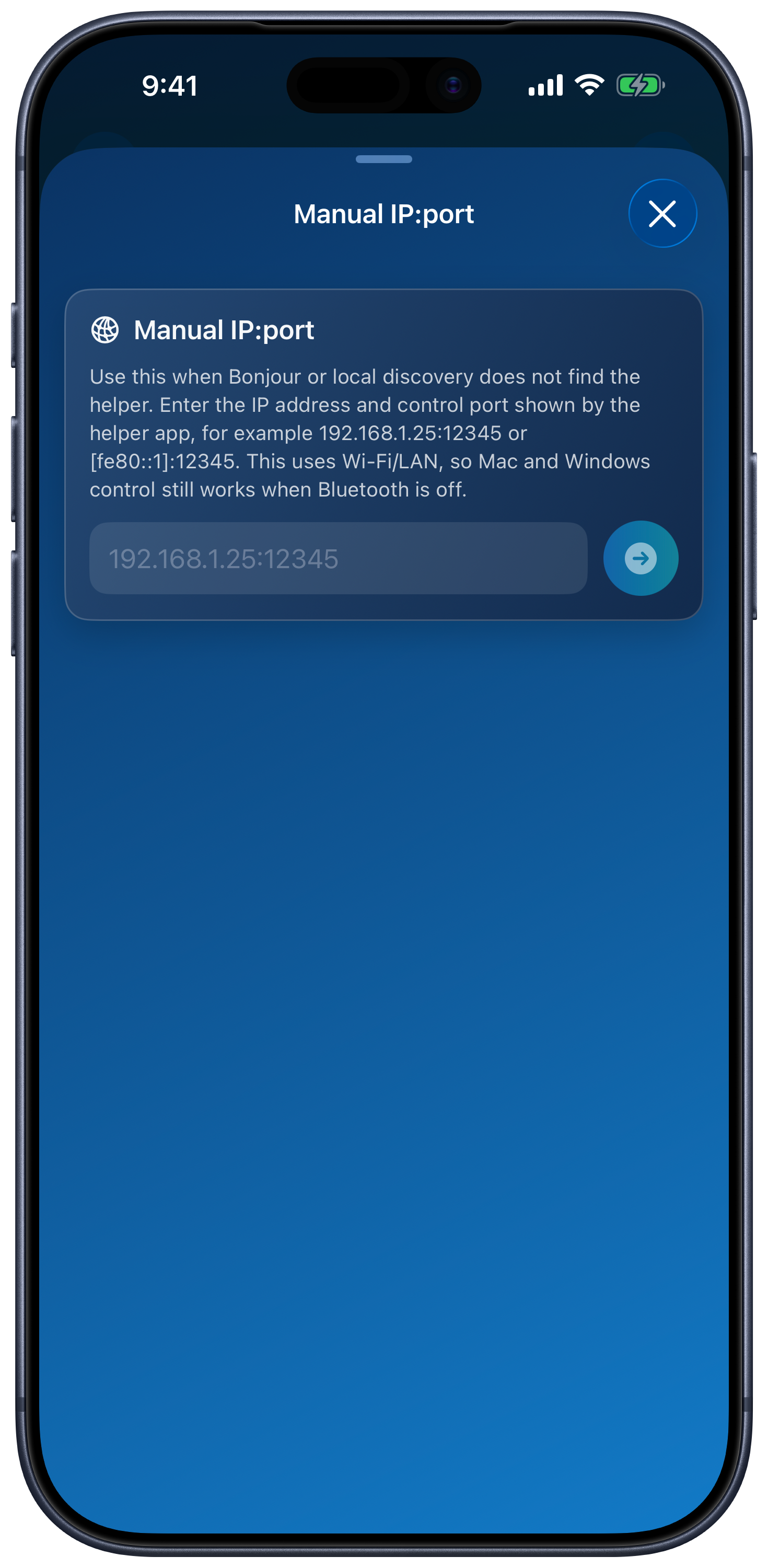
In Add Device → Apple Mac, choose Scan QR Code to scan the helper’s code, or Enter IP:port manually to enter the helper’s current IP address and control port. This can help when automatic discovery fails, but it does not bypass blocked network traffic. Bluetooth Discovery is not needed for a Mac connection.
Connection Requirements
| Works With | Does Not Work With |
|---|---|
| Mac with Remote Helper installed and running | Mac without Remote Helper |
| Same Wi-Fi network or personal hotspot | Different, guest, hotel, school, or isolated networks |
| macOS firewall rules that allow Remote Helper | Firewall or VPN rules that block local helper connections |
Mac Helper FAQ
Should Remote Helper open automatically?
You can keep Remote Helper running so the app can find the Mac quickly. If it is closed, open it before connecting.
Why does the app ask for Local Network permission?
iOS and iPadOS require Local Network permission before apps can discover and communicate with nearby devices.
Where can I read the full connection guide?
Open the Remote Mouse connection guide.