 Skip to content

Remote Mouse & Keyboard can turn an iPhone or iPad into a presentation remote for a Windows PC. It sends the same keyboard shortcuts and pointer input that the presentation app already understands, and custom keypads can put the essential slide actions on one screen.
Quick Answer
Install Remote Helper on the Windows PC, connect the PC and iPhone to the same Wi-Fi network, and pair them in Remote Mouse & Keyboard. Use keyboard controls or create a keypad for next slide, previous slide, start presentation, end presentation, blank screen, or any other shortcut supported by your presentation software.
Setup Before the Presentation
- Install the iPhone app and Remote Helper for Windows.
- Connect both devices to the same trusted Wi-Fi network or personal hotspot.
- Pair the Windows PC in the app.
- Open PowerPoint or the presentation software you will use.
- Test the exact keyboard shortcuts in slideshow mode.
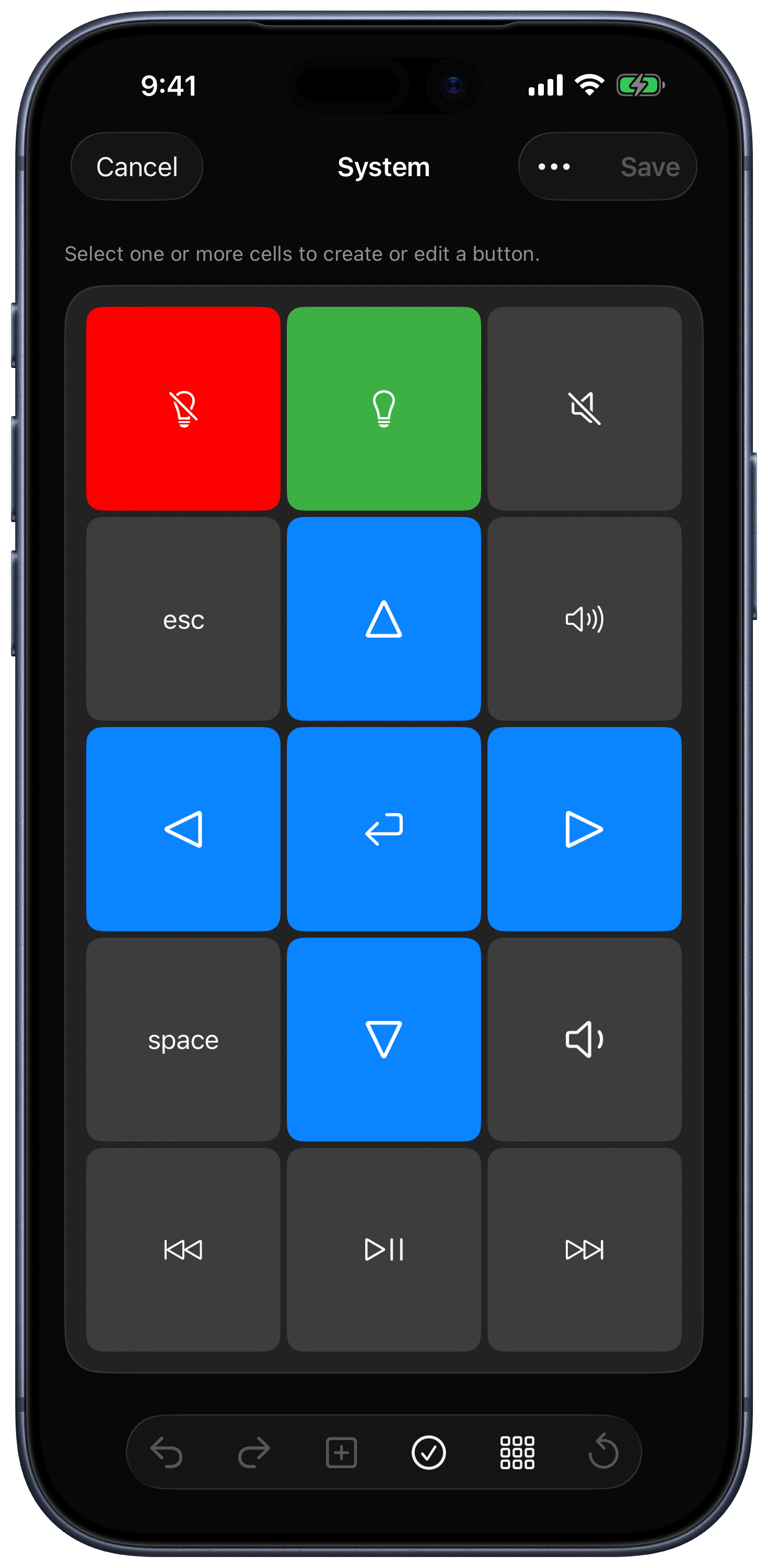
- Build a custom keypad if you want larger, labeled buttons.
Useful Presentation Controls
- Next and previous slide shortcuts.
- Start or exit slideshow mode.
- Black or white screen commands supported by the presentation app.
- Trackpad input for menus, links, or pointer movement.
- Keyboard input for search or live edits.
- Timers and Siri Shortcuts for repeatable supported actions.
Reliability Checklist
- Test on the venue network before the audience arrives.
- Avoid guest Wi-Fi that isolates devices.
- Keep Remote Helper running and allowed through Windows Firewall.
- Disable sleep during the presentation if appropriate.
- Keep a physical keyboard or clicker available as a fallback.
- Use a personal hotspot if venue policy allows it and local Wi-Fi blocks discovery.
Presentation Remote FAQ
Is it limited to PowerPoint?
No. It works with Windows apps that accept keyboard shortcuts or mouse input. Shortcut behavior belongs to the presentation app, so test it in advance.
Can I make large next and previous buttons?
Yes. A custom keypad can provide a simple slide layout with the exact shortcuts you choose.
Can I see the Windows screen on iPhone?
Live View can provide visual context, but the app is designed primarily as a local input remote rather than a full remote desktop presentation system.
Common questions
Can I use iPhone as a presentation remote for Windows?
Yes. Remote Mouse & Keyboard can send presentation keyboard shortcuts and pointer input to a Windows PC, and it supports custom keypads for the slide commands you use.
Does it work with PowerPoint?
It can control PowerPoint and other Windows presentation apps that respond to keyboard shortcuts or mouse input. Test the shortcuts with the exact app and presentation mode before the event.
Does a presentation remote need internet?
No. The iPhone and Windows PC only need a shared local network or personal hotspot that permits device-to-device communication.