










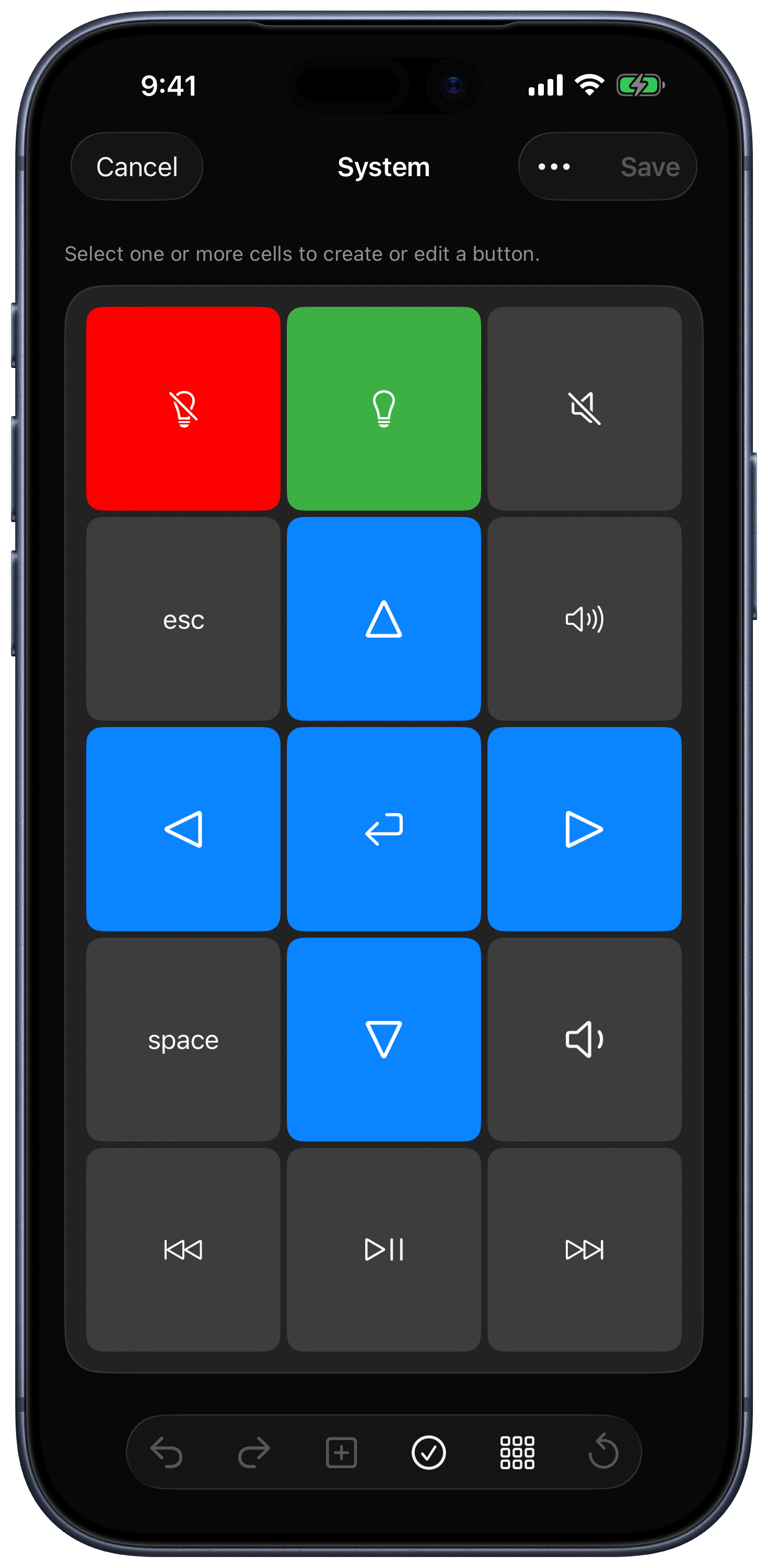
Open KeyPads, then choose Create from the keypad menu. For an existing keypad, choose Edit to open the list, then Edit in that keypad’s menu. The current editor has a selectable grid, layout details, button editing, and undo/redo. Tap Save to keep your work or Cancel to leave the editor.
Keypad Details
Open Layout Details to change the keypad’s name, icon, and appearance. Wallpaper can come from Photos or iCloud Drive. When connected to a Mac, Assign App associates the keypad with a computer app.
The Select KeyPad and Associated App switches in Customization control whether that association follows the active Mac app or launches the assigned app when you change keypad.
Layout and Selection
- Select a cell, then use Edit Button to add or change its action.
- Use the selection controls to switch between Single and Multiple selection.
- Select compatible neighboring cells and choose Merge to make a larger button. Use Split to divide a merged button.
- Add or remove rows and columns with the layout controls.
- Use Cut, Copy, Paste, Delete, Undo, and Redo as needed.
The editor enables actions according to the current selection. Use Duplicate in the keypad list if you want a separate version of an existing panel.
Button Appearance and Actions
Set a button’s title, icon, colors, and typography in the button editor. Depending on the platform and editor context, actions include keyboard sequences, media/function keys, system and app commands, Mac menu actions, website links, text input, and a trackpad surface. Some actions require premium access.
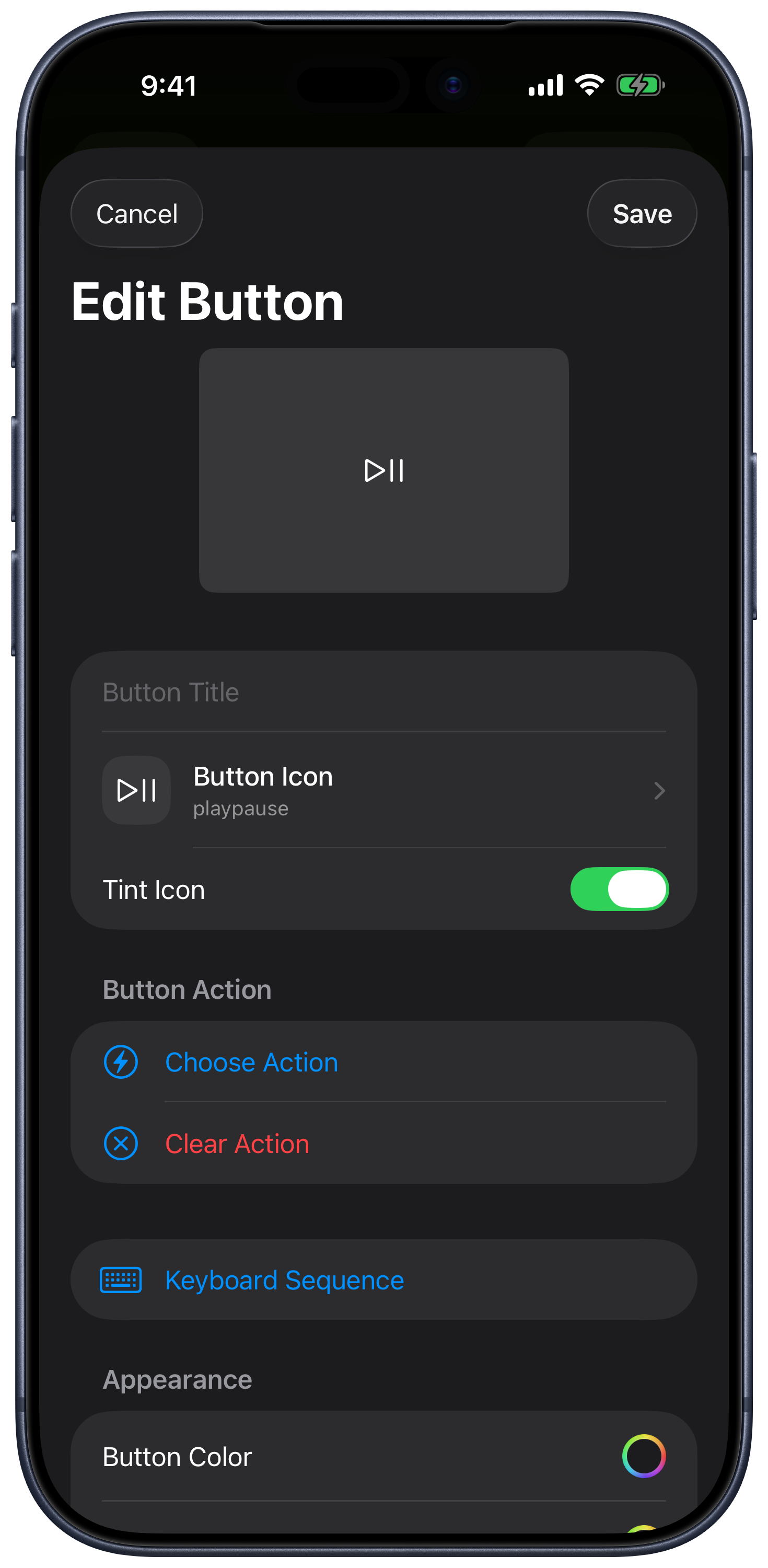
Use Test Key only when you are ready to run the selected action on the connected computer. Testing executes the action; it does not simply preview the button.
Keyboard Sequences
Build a sequence from keys and modifiers, and add delays between steps when the target app needs time to respond. For example, a presentation button can send the appropriate next-slide key for that app.
Use Keyboard Sequence to save a reusable named sequence for Shortcuts when the option is available. Choose the matching Mac or Windows computer type. See Siri and Shortcuts.
The same editor also powers the Input Bar and Live Activity controls, with actions and layout options appropriate to each surface.