 Skip to content

Remote Control for TV can switch HDMI inputs and other sources from iPhone on supported TV platforms. Input control belongs to the TV, so support depends on whether the saved device is a television or only a streaming player, and on what the brand, model, firmware, and remote layout expose.
Quick Answer
Yes, you can switch a TV HDMI input from iPhone when the paired TV supports source control. Select the saved TV in Remote Control for TV, open its Source, Input, or HDMI controls, and choose the desired input. Supported Samsung, LG, Roku TV, Hisense, Vizio, and some Android TV devices expose input actions. A streaming stick alone may not control the television’s input selector.
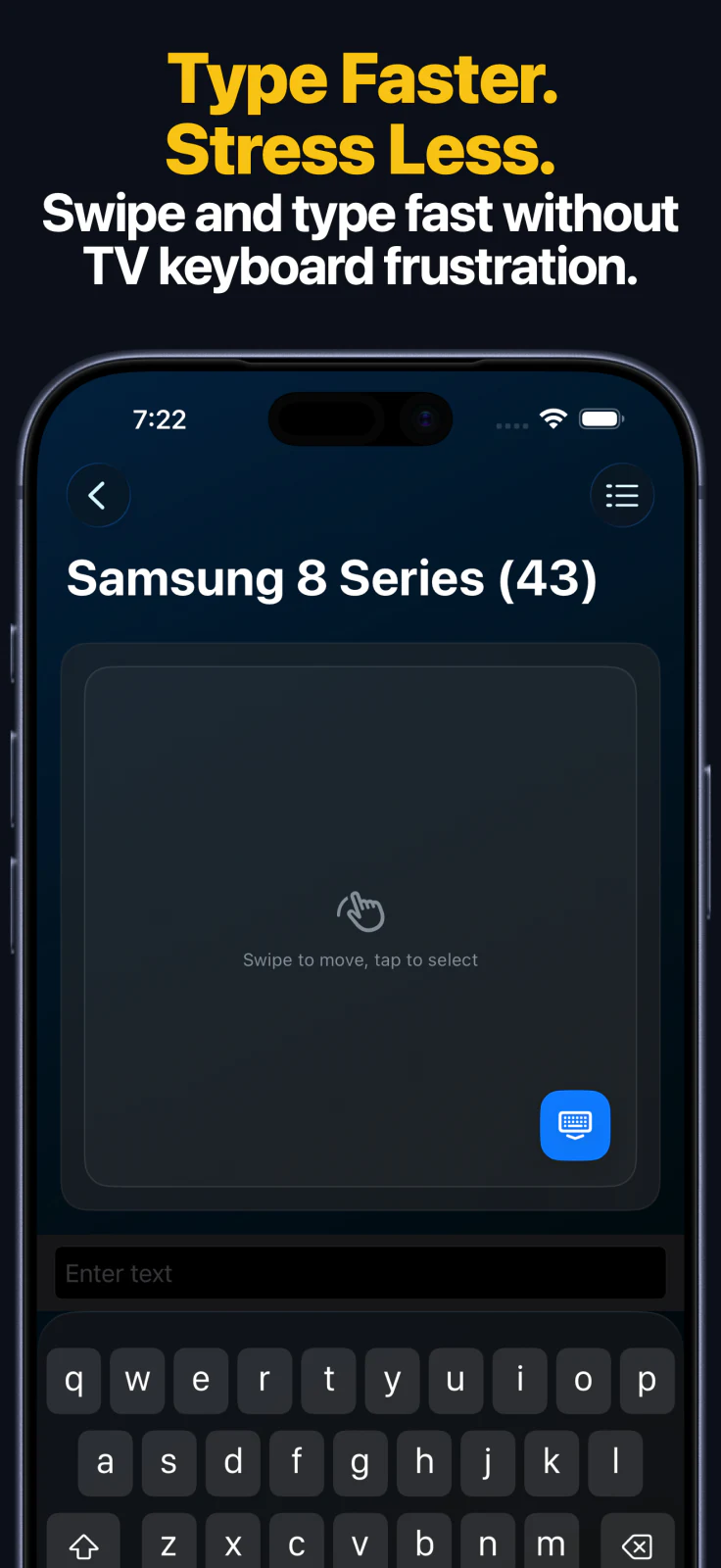
How to Switch Inputs
- Pair the TV itself in Remote Control for TV.
- Keep the iPhone and TV on the same local network.
- Select the saved television.
- Open the keypad or source/input area provided for that device.
- Tap Source, Input, or the direct HDMI entry when available.
- If the platform only provides a Source key, use it to cycle or open the TV’s source menu.
Input Support by Device Type
| Saved device | Typical input behavior |
|---|---|
| Supported Samsung TV | Source key or input actions when exposed by the model and layout |
| Supported LG webOS TV | Source list and input switching on supported models |
| Roku TV | Direct HDMI or input controls on supported Roku television models |
| Roku player or stick | Usually controls Roku, not the TV’s full input list |
| Supported Hisense or Vizio TV | Source switching where the device protocol and layout expose it |
| Android TV or Google TV | Varies widely by brand, model, firmware, and available key actions |
| Fire TV Stick or Cube | Primarily controls Fire TV; television input changes may rely on HDMI-CEC |
Switch HDMI with Siri
After saving a compatible TV, open Shortcuts and look for the app’s Switch Input action. Choose the TV and input when those parameters are available, name the shortcut clearly, and test it before using Siri. See Siri Shortcuts for TV Remote for the complete setup.
Why the Input Button May Be Missing
- The saved device is a streaming player rather than the television.
- The TV protocol does not expose a source list to network remotes.
- The model or firmware supports only a Source key, not direct HDMI selection.
- The app’s layout for that device does not include an input action.
- HDMI-CEC is needed for a streaming device to influence the television.
HDMI Input FAQ
Can one iPhone app switch inputs on different TV brands?
Yes, when each saved TV is supported and exposes input control. The button names and available sources can differ by platform.
Can an iPhone switch inputs without an IR blaster?
Yes. The app uses the TV’s network remote protocol over local Wi-Fi. It does not require infrared or line-of-sight.
Does the TV need to be awake?
Usually. Some compatible TVs can wake over the network, but wake support varies. See TV wake over Wi-Fi for the limitations.
Common questions
Can I switch my TV HDMI input from iPhone?
Yes on supported TVs. Remote Control for TV provides source or HDMI controls for supported Samsung, LG, Roku TV, Hisense, Vizio, and some Android TV devices. Availability varies by model, firmware, device type, and remote layout.
Can Siri switch a TV to HDMI 1?
A saved TV that exposes the Switch Input action can use it in Siri Shortcuts. The exact inputs available depend on the TV platform and its remote layout.
Why does my streaming stick not show HDMI inputs?
A streaming stick usually controls its own interface, not the television's input selector. Pair the supported TV itself or rely on HDMI-CEC when the hardware supports it.