
Find your kind of TV.
Connect supported Samsung, LG, Roku, Fire TV, Android TV, Google TV, Apple TV, Hisense, and Vizio devices.
 Skip to content
Bring your supported TVs and streaming devices together on iPhone, iPad, Apple Watch, and Mac.
iPhone · iPad · Apple Watch · Mac
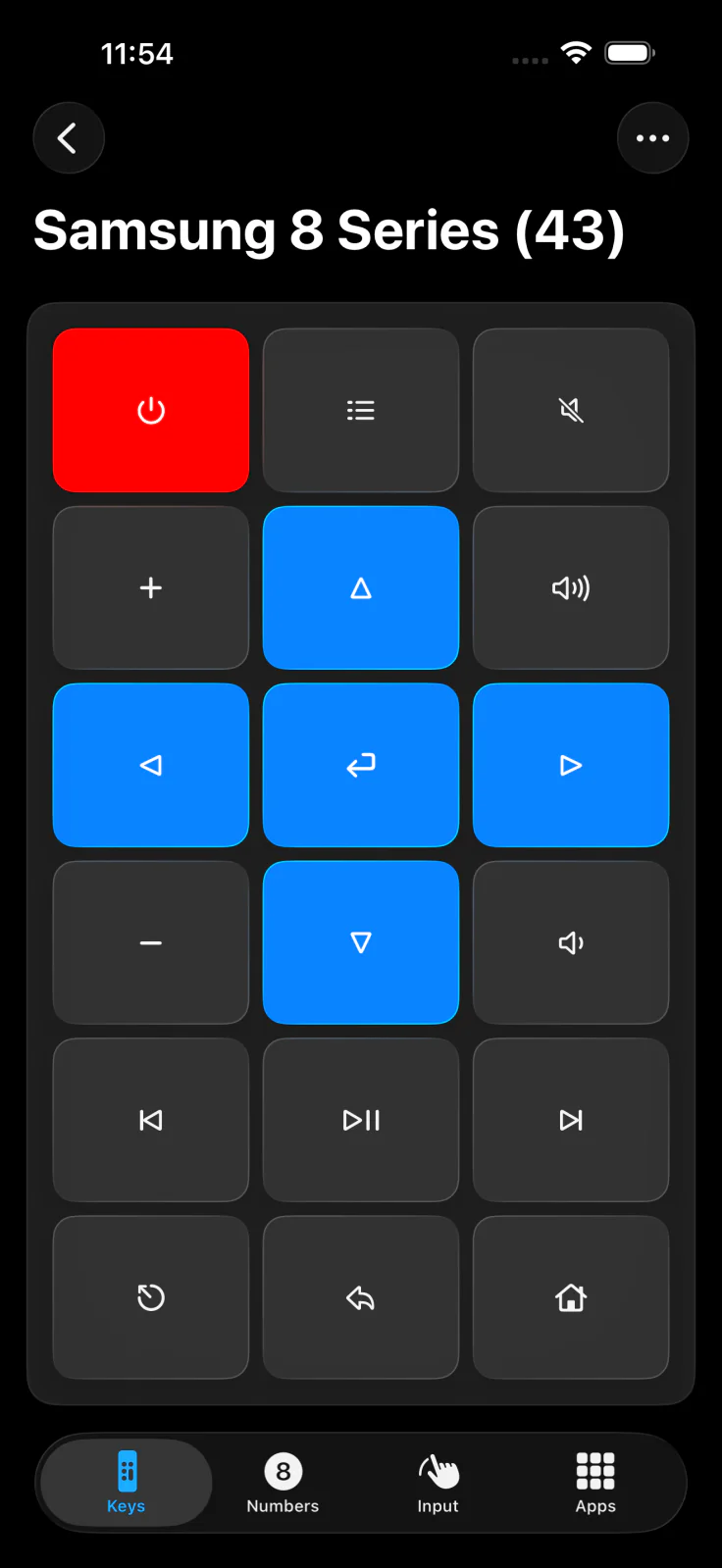
Connect supported Samsung, LG, Roku, Fire TV, Android TV, Google TV, Apple TV, Hisense, and Vizio devices.
Navigate, launch apps, and switch inputs where your TV supports them. Check the compatibility guide for details.
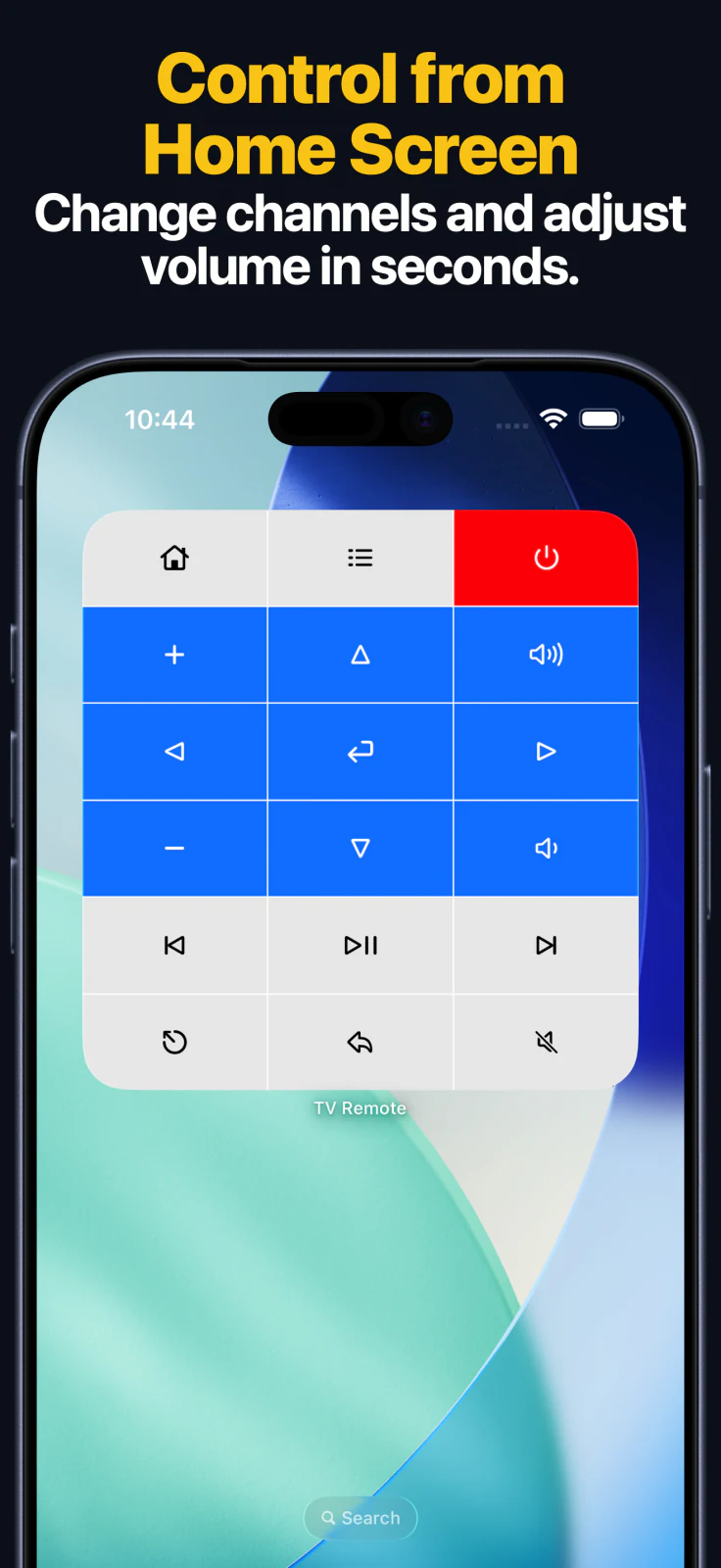
Use widgets, Apple Watch controls, and Siri Shortcuts for supported actions.
Control your TVs and streaming devices from iPhone, iPad, Apple Watch, or Mac. Save multiple devices and switch between rooms without looking for another remote.

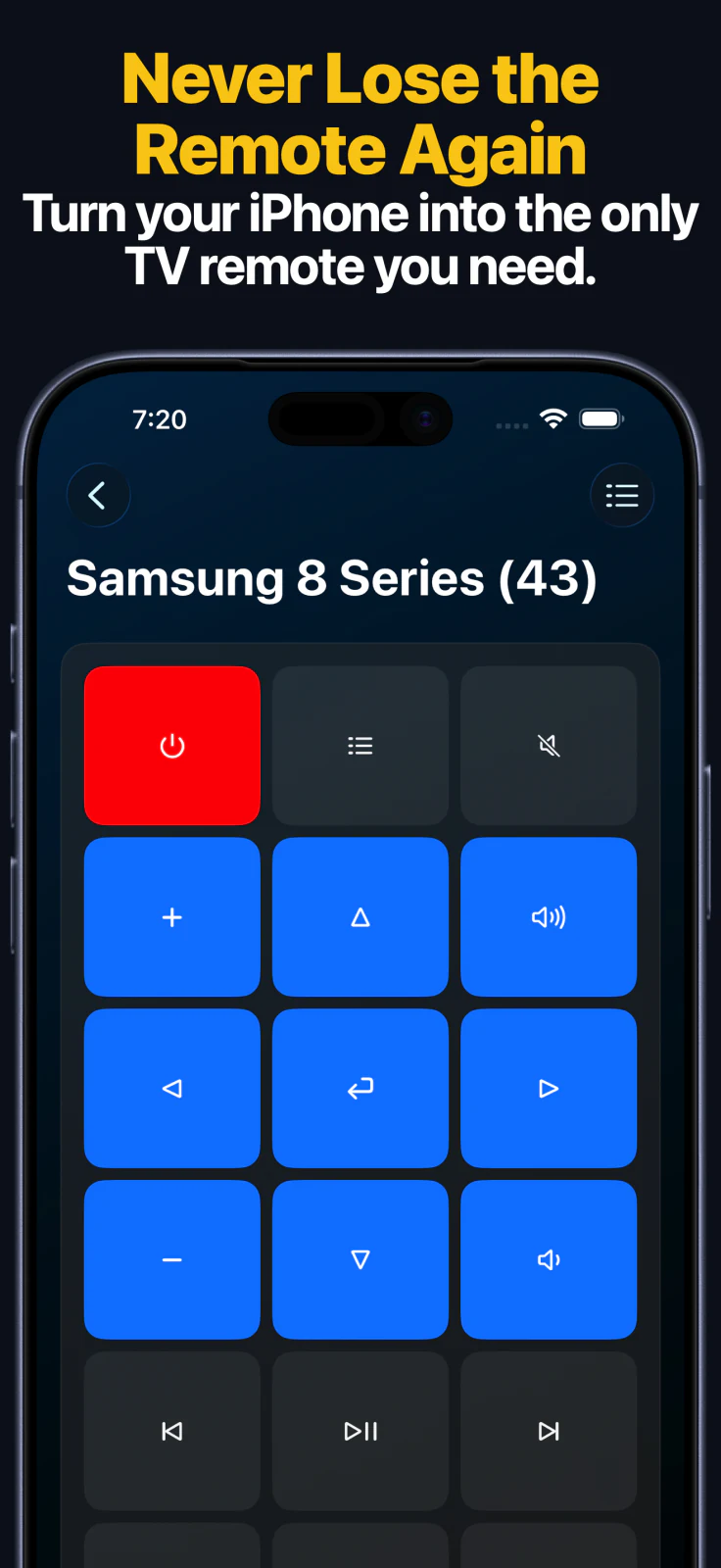

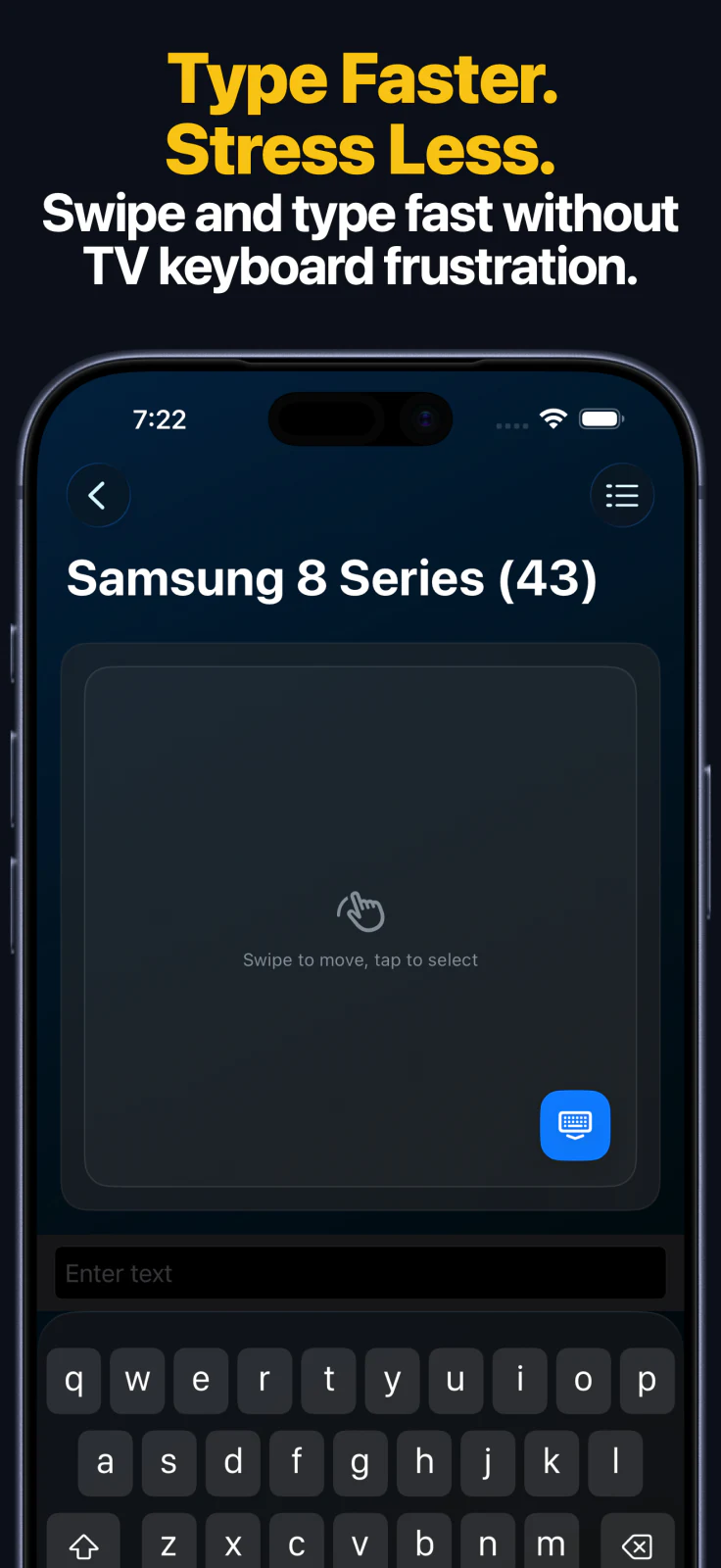
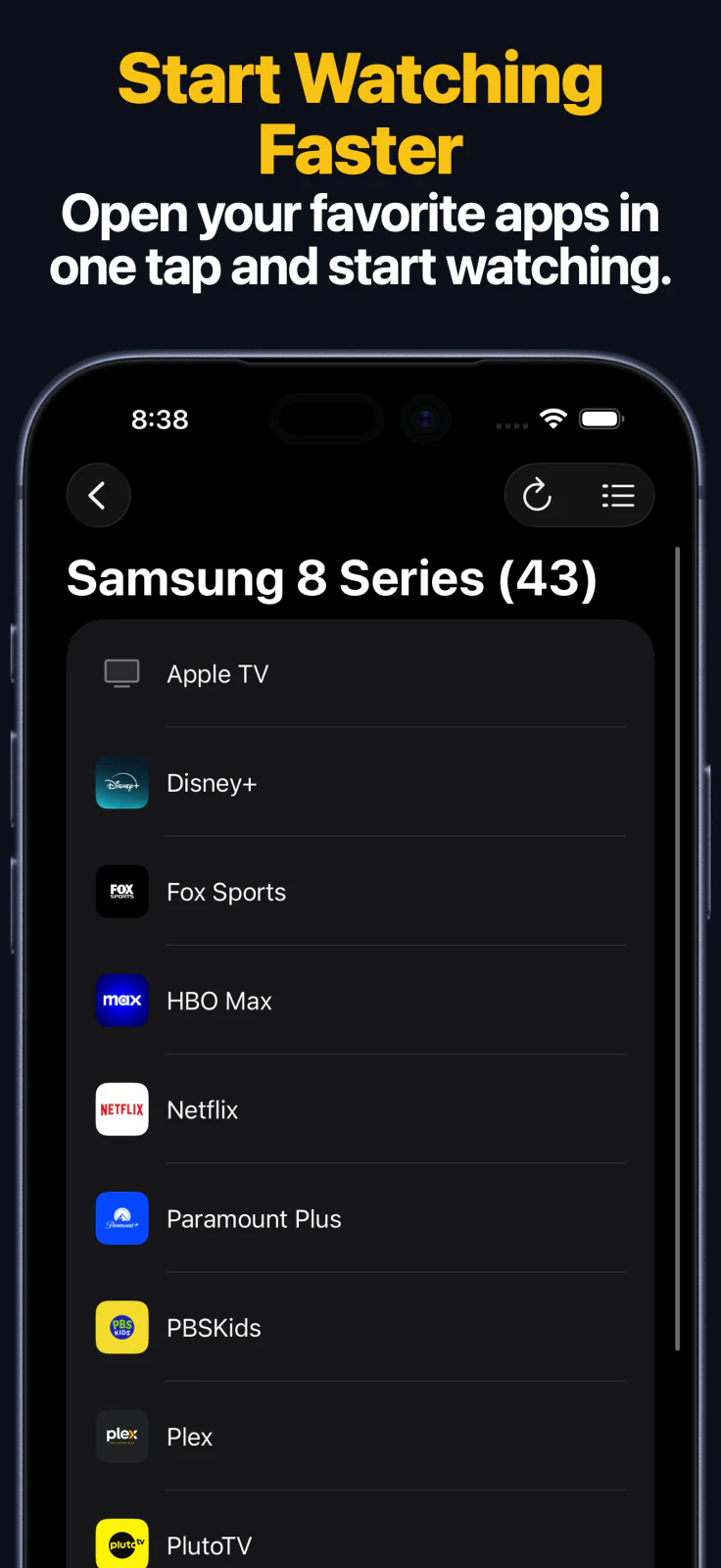
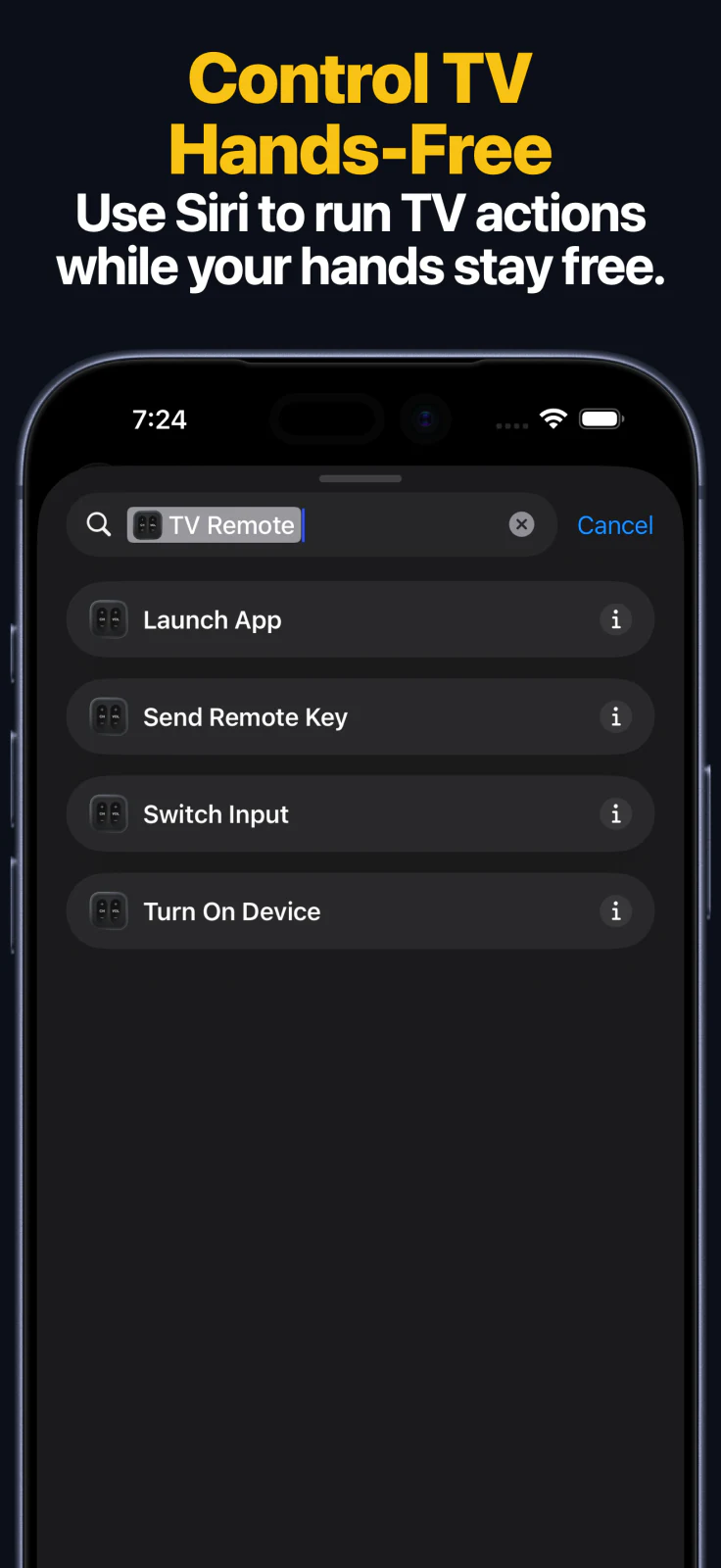


Choose your platform to check pairing, power, text entry, app launching, and other features. Availability varies by model, firmware, and TV settings.
Open the TV setup guides for your model. No Remote Helper is needed for TV pairing.
Use your saved TVs from Apple Watch or Mac. Add widgets or create Shortcuts for Send Key, Turn On, Launch App, and Switch Input where the saved TV supports the action.
See the Apple Watch guide and Siri Shortcuts guide for supported actions and setup.
Add missing launchers on Samsung, Android TV, and Google TV using the custom TV apps reference.
A supported TV or streaming device and your Apple device must be reachable on the same local network. See the App Store information below for current device requirements and Local Network Security for pairing and privacy details.
Checked September 30, 2026. Availability, pricing, and requirements can change; the App Store listing has the latest details.
| Detail | App Store listing |
|---|---|
| Name | TV Remote Control — Universal |
| Version checked | 2609.5 |
| iOS / iPadOS requirement | 17.0 or later |
| Download price | Free download; see the listing for in-app purchases |
| Source | View TV Remote Control — Universal on the App Store |
Remote Control for TV works with Samsung Smart TVs, LG webOS TVs, Apple TV, Roku devices, Fire TV devices, Android TV and Google TV devices, Hisense TVs, and Vizio TVs supported by the app.
The app connects over Wi-Fi on your local network. It does not need line-of-sight like a traditional infrared remote.
Yes. The app supports Home Screen widgets, Lock Screen widgets on supported iOS versions, and Siri Shortcuts and App Intents for actions such as Send Key, Turn On, Launch App, and Switch Input on supported devices.
Yes. The app includes an Apple Watch app for quick keypad control on every supported device family, with app launching on supported brands and source switching on supported LG and Hisense TVs, plus a macOS app for controlling saved devices from your Mac.
Yes. You can save multiple devices and switch between TVs or streaming boxes from the same iPhone or iPad.
Open the TV connection guide hub to find step-by-step setup and troubleshooting pages for Apple TV, Samsung, LG, Roku, Fire TV, Android TV, Hisense, and Vizio.
Help from the maker
Start with the guide, or get in touch with the developer.