 Skip to content

Replacing a missing TV remote is useful. Replacing the juggling act between your TV remote, streaming-box remote, and several phone apps is even better.
The best TV remote app for your iPhone should fit the way your living room actually works. If you watch through an Apple TV, for example, you want to navigate the Apple TV while changing the television’s volume from the same control panel. You may also want a pause button on your wrist, a widget beside your other Home Screen controls, or a Siri shortcut you can use without opening the full remote.
Our pick for that kind of setup is Remote Control for TV, by Remote Sunrise. Its standout combination is custom keypads, TV-to-streamer button assignment, and quick controls across iPhone, Apple Watch, Siri, widgets, Live Activities, and Control Center.
About this comparison: We make Remote Control for TV. We selected four prominent multi-brand competitors from the US App Store search for “TV remote,” with one app per publisher, and compared their current listings with our app’s features. Sources were checked on November 19, 2026. These are editorial recommendations by use case; supported functions depend on your TV model, firmware, and app edition.
The five TV remote apps at a glance
| App and developer | Best fit | What makes it worth considering | Purchase model |
|---|---|---|---|
| Remote Control for TV · Remote Sunrise LTD | A personal remote for a TV-and-streamer setup | Custom keypads, linked TV buttons, Siri, Apple Watch, widgets, Live Activities, and Control Center | Free basic controls; optional Premium subscriptions or lifetime purchase |
| Universal TV Remote · · KRAFTWERK 9 LTD | Gesture-based TV navigation | Touchpad navigation and Wake-on-LAN on compatible, previously connected TVs | Free download; in-app purchases and Premium subscription |
| TV Remote – Universal Control · EVOLLY.APP | A familiar remote with typing and voice search | Wi-Fi discovery, touchpad, keyboard input, channel launching, and voice search | Free download; Premium purchase or subscription options |
| TV Remote – Universal · Zap Software Studio BV | A broad multi-brand remote shortlist | Lists support for Samsung, LG, Roku, Sony, Philips, Fire TV, Android/Google TV, Hisense, and Vizio | Free download; in-app purchases |
| Universal TV Remote Control・ · toggle apps | Choosing between swipes and directional buttons | Combined touchpad and D-pad, keyboard, app management, media controls, and number pad | Free download; subscriptions and lifetime access offered |
The linked App Store pages identify the exact apps—important when so many have similar names. Prices and purchase options can change. A feature highlighted in one listing is not proof that other apps lack it; the comparison below focuses on documented strengths and why you might prefer ours.
1. Remote Control for TV: best for a personal, connected living room
Our app brings compatible TVs and streaming devices together on iPhone and iPad, with companion controls on Apple Watch and Mac. Supported platforms include Apple TV, Samsung, LG, Roku, Fire TV, Android TV, Google TV, Hisense, and Vizio. Check the compatibility guide for the functions available on your equipment.
The reason to choose it goes beyond having another set of directional buttons. You can design the keypad, decide which device receives selected buttons, and put frequently used controls where they are easiest to reach.
For example, keep your Apple TV’s navigation and playback controls on screen, but assign volume and mute to the Samsung or LG television connected to it. When you want to pause, use the remote, Apple Watch, or a supported quick-control surface.
Basic remote buttons, basic Apple Watch controls, and basic widget buttons are free. Premium adds features such as keypad customization, connected-TV assignment, keyboard input, app launching, and extended quick controls. Your device still determines which commands it can perform.
Get our app on the App Store · Explore Remote Control for TV
2. Universal TV Remote ·: best for gesture-first navigation
KRAFTWERK 9’s Universal TV Remote emphasizes navigating a TV with touchpad swipes instead of repeatedly tapping directional buttons. Its listing also describes waking compatible TVs with Wake-on-LAN after an initial connection.
Consider it if: Your main goal is a conventional smart-TV remote with gesture-based navigation.
Why choose ours instead: A convenient touchpad is only one part of a multi-device setup. Remote Control for TV adds a visual keypad editor and a connected-TV assignment workflow, so the streamer and the television can share one panel. The difference matters when navigation belongs to one box and volume belongs to another.
KRAFTWERK 9 notes that initial setup may still require the physical remote. Its Premium features are available through a subscription.
Source: Universal TV Remote · on the App Store.
3. TV Remote – Universal Control: best for familiar controls and voice search
EVOLLY.APP’s TV Remote – Universal Control lists automatic Wi-Fi discovery, a large touchpad, direct channel launching, keyboard input, and voice search. Its advertised brand coverage includes Samsung, Roku, LG, Sony, Fire TV, Android TV, Vizio, and Hisense.
Consider it if: You want common TV-remote functions plus convenient search and typing from your phone.
Why choose ours instead: Our app is built around making the remote personal and available beyond its main screen. Custom keypads and TV-to-streamer assignment change what your panel does; Apple Watch, widgets, and Control Center change where you can reach it. Our Siri Shortcuts can run configured device actions, which is a different use case from voice search within a remote app.
Its listing offers Premium to remove ads and unlock features, with purchase and subscription options.
Source: TV Remote – Universal Control on the App Store.
4. TV Remote – Universal: best for a broad brand shortlist
Zap Software Studio’s TV Remote – Universal focuses its listing on using one phone with multiple TV brands. It names LG, Roku, Samsung, Sony, Philips, Amazon Fire TV, Android TV, Google TV, Hisense, and Vizio.
Consider it if: You are comparing broad brand coverage and want to see whether your particular TV connects.
Why choose ours instead: Supporting two devices in one app is the starting point. Our connected-TV setup lets supported buttons on a streamer’s keypad target the television while the rest continue to control the streamer. Add custom layouts and Apple ecosystem controls, and you can build around how you actually watch TV.
The listing is a useful compatibility starting point, but it does not document that same combined-panel workflow. Check the current app and your model before assuming feature parity.
Source: TV Remote – Universal on the App Store.
5. Universal TV Remote Control・: best for switching between swipes and taps
toggle apps highlights a combined touchpad and D-pad, letting you choose gestures or directional buttons. Its listing also includes keyboard input, TV app management, media controls, volume, and a numeric keypad, with support advertised across several major TV and streaming brands.
Consider it if: You like having familiar buttons and swipe navigation together on your iPhone.
Why choose ours instead: Our customization goes further than choosing a navigation style. You can change your keypad’s controls and appearance, route supported TV buttons from a streamer’s panel, and keep quick actions on Apple Watch, widgets, Siri, and Control Center.
toggle apps lists weekly and yearly subscriptions and lifetime access. Check the current offer and included functions before purchasing.
Source: Universal TV Remote Control・ on the App Store.
The feature that changes a TV-and-streamer setup
Imagine an Apple TV connected to a Samsung television. You browse and play content on the Apple TV, but the television handles the volume. A remote that merely saves both devices can still leave you switching between two control screens.
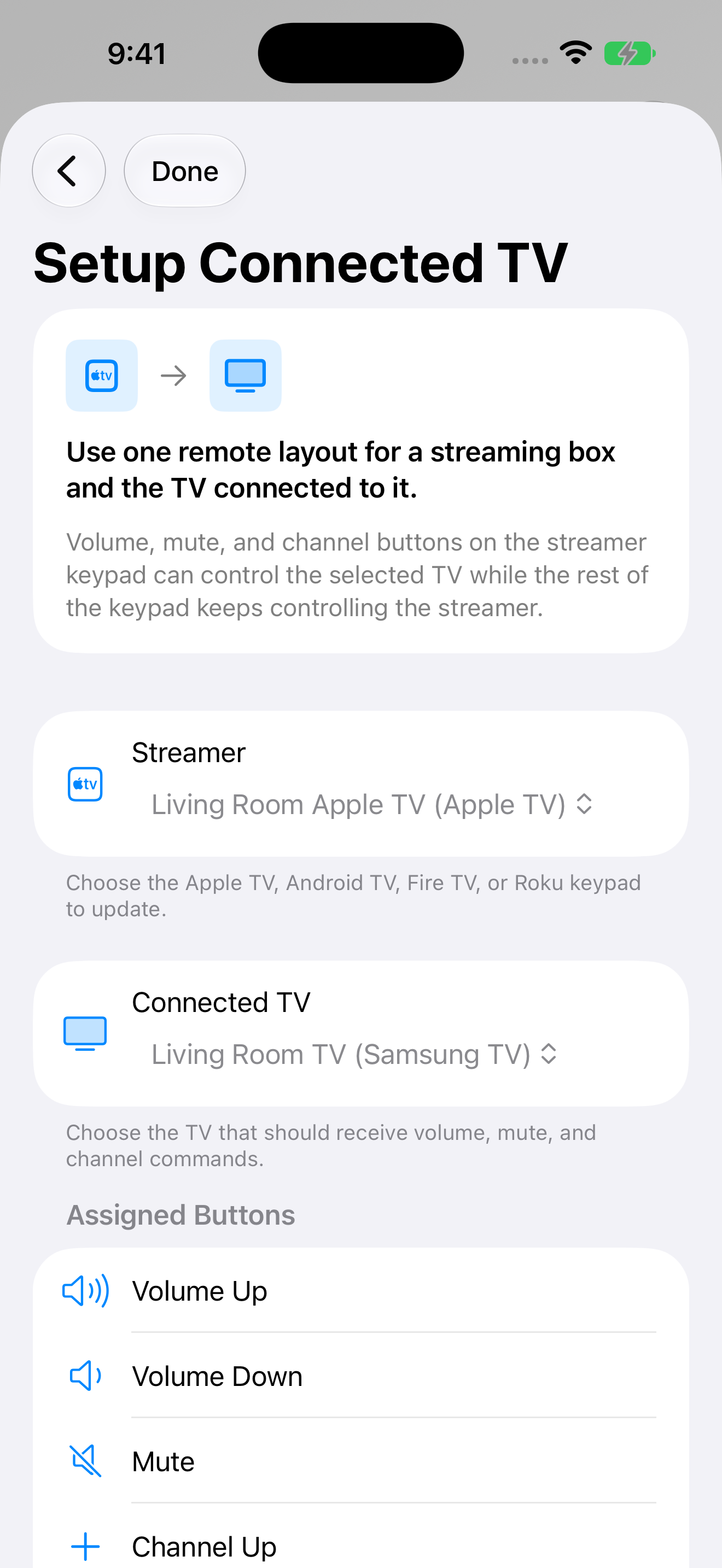
Our connected-TV assignment keeps you on the streamer’s keypad. Assign its supported volume, mute, and channel buttons to the connected television. Navigation and playback continue to control the streamer.
The same setup workflow supports saved Apple TV, Android TV, Fire TV, and Roku streamer remotes. Both devices need to be added and paired first. Only the supported buttons shown in the assignment screen are changed; your other buttons and layout remain intact.
- Open the keypad settings and choose Set Up TV Buttons.
- Choose the streamer remote you want to keep using.
- Select the television connected to that streamer.
- Review the supported buttons and assign them. Use Reset if you want to restore the streamer’s original commands.
This is the practical distinction between keeping several remotes in one app and having one useful control panel for both devices. Available volume, mute, and channel commands depend on the selected TV.
Make the keypad yours
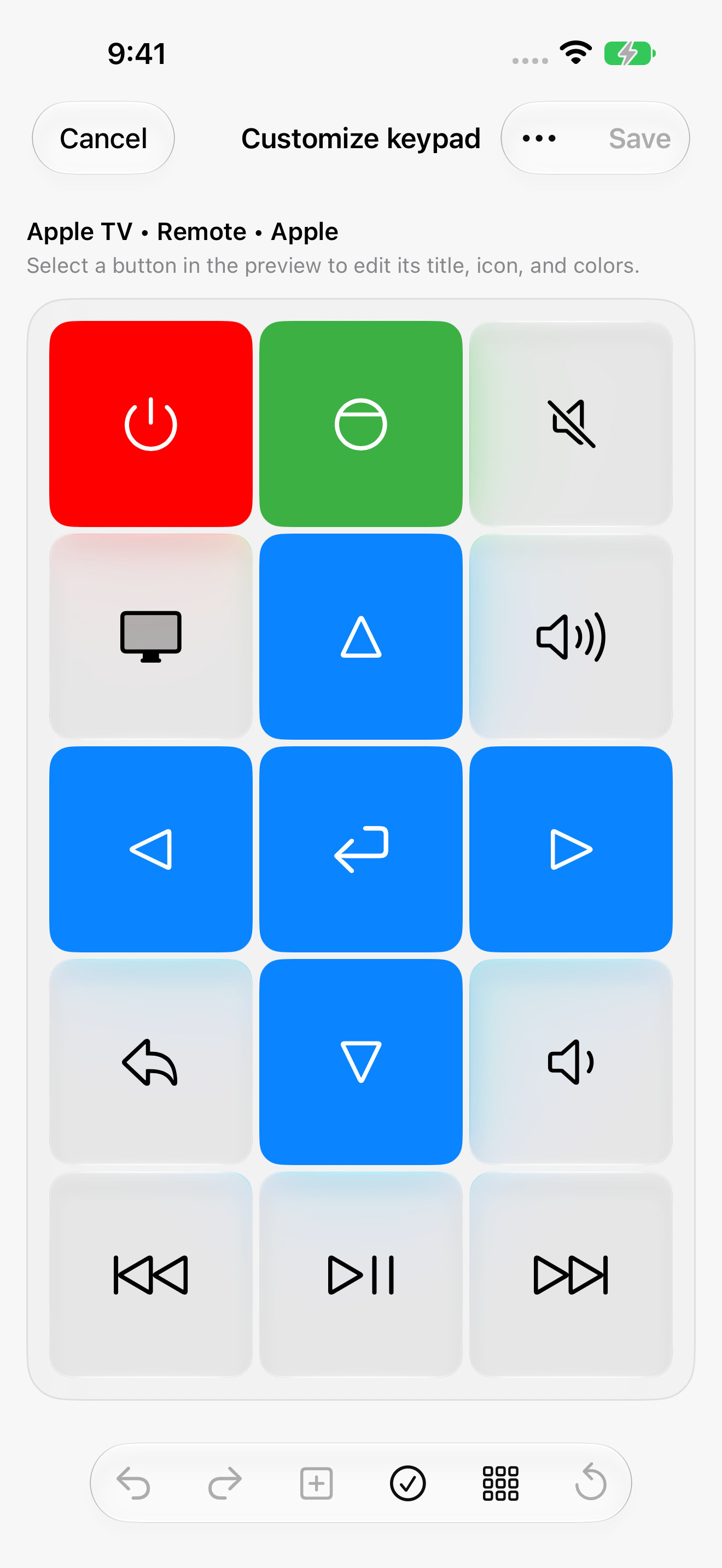
A TV remote does not need to look the same for everyone. You might want a large mute button, fewer rarely used keys, clearer labels, or a layout that makes sense to the rest of your household.
With our custom keypad editor, you can adjust the layout and button sizes, choose titles and icons, and change colors. You can also configure supported button actions and sequences. Start with the controls you use daily, then add the extras you need.
Reach your remote without opening the full app
The best control is often the one you can reach immediately. Here is how our app fits into the Apple devices and system controls you already use.
Siri and Shortcuts
Create a named shortcut to send a remote key, launch a supported TV app, or switch an available input. You can combine TV actions with other steps in the Shortcuts app—for example, a shortcut that launches your chosen TV app and runs other supported setup actions.
On iOS 26 and later, Show Remote can also present interactive playback and volume controls through Siri. Available actions depend on the selected device, and some require Premium. See the Siri setup guide.
Apple Watch
Pause, navigate, and use available device controls from your wrist after setting up the device on your iPhone. Supported TVs also offer app launching, and some offer source selection. Premium adds configurable Smart Stack quick controls on watchOS 11 and later; supported watches can use Double Tap for Play/Pause.
The benefit is simple: when your phone is charging across the room, your wrist can still be your remote. See Apple Watch TV controls.
Home Screen widgets
Put TV buttons on your Home Screen so routine actions are close to your other everyday controls. Basic widget buttons are free; available layouts and actions depend on the saved device and your access level.
Live Activities
Keep an active remote available on the Lock Screen and, on compatible iPhones, in the Dynamic Island. Live Activities give you quick access to the current device’s supported controls while you use other apps. They require the feature to be enabled and remain subject to iOS availability and activity limits.
Control Center, Lock Screen controls, and the Action button
On iOS 18 and later, add Open Remote, Remote Key, Play/Pause, or Mute controls to Control Center. On supported iPhones, system controls can also be placed on the Lock Screen or assigned to the Action button. Remote-key and media actions require Premium; Open Remote gives you a direct route into the selected remote.
These are app-provided controls for supported saved devices, so you can use them with compatible TV brands beyond Apple TV. The same Control Center features are also available on macOS 26 and later.
Apps, typing, rooms, and Mac control
Launch supported TV apps, type searches with a keyboard, and switch available sources. Save devices by room so the bedroom and living room stay easy to tell apart. Use the Mac companion app when your computer is already open beside you.
These functions are model-dependent. For example, touchpad navigation is available on supported Apple TV, Samsung, and LG devices; it is not a promise that every brand exposes every control.
Which TV remote app should you choose?
If your main need is a replacement directional pad, the conventional remotes above are worth comparing against your TV. If you want search, a touchpad, or a numeric keypad, check those features against your exact model before paying.
Choose Remote Control for TV when you want a remote built around your whole setup: custom keypads, one panel for a streamer and its TV, and quick access through Siri, Apple Watch, widgets, Live Activities, and Control Center.
Start with the free controls and confirm your TV connects. Then explore the customization and quick-control options that will make a difference in your living room.