 Skip to content

Save and connect the device in Remote Mouse & Keyboard first. Then open Apple’s Shortcuts app, create a shortcut, and find the app’s actions. Computer actions have a [Computer] prefix; TV actions have a [TV] prefix.
Create Your First Shortcut
- Add the action you need in Shortcuts.
- Choose the saved computer or TV. Set the app, key, website, or other parameters offered by that action.
- Test the shortcut while the device is available on the local network.
- Give the shortcut a clear name and ask Siri to run it.
Computer actions need Remote Helper running and reachable. Wake actions are the exception to the normal awake-device requirement and depend on hardware/network support. Some actions require premium access.
Keyboard Sequences
In Remote Mouse & Keyboard, open Settings → Siri Shortcuts. Under Keyboard Sequences, tap +, choose Mac or Windows PC, configure your keys and delays, and save a name. Use [Computer] Send Keyboard Sequence in Shortcuts to choose the saved sequence and a compatible computer.
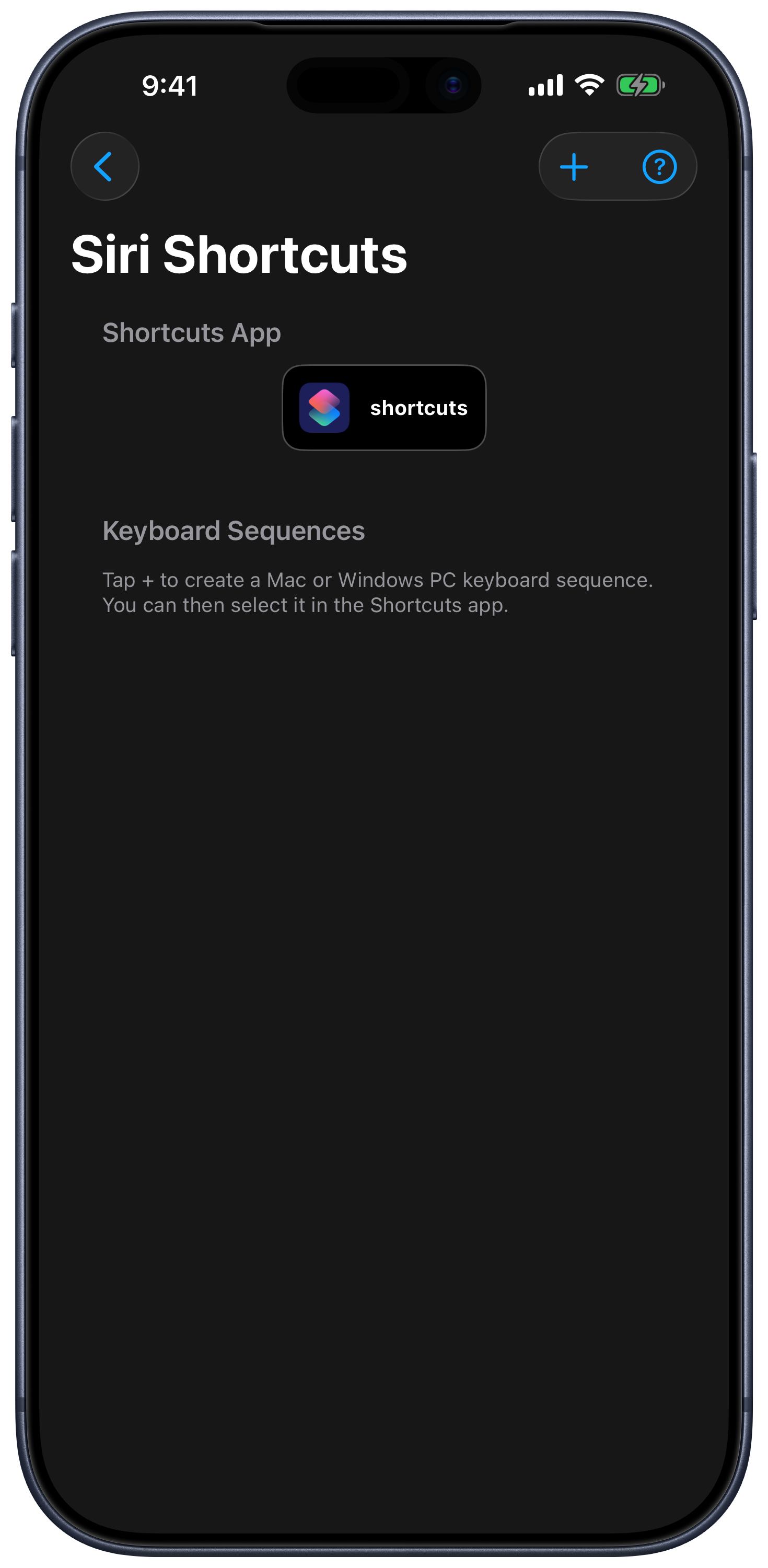
Sequences are saved by name and computer type. Existing shortcuts reference the saved sequence, so edit it in the app when you want to update its keys. If you delete and recreate a sequence, select the new one in Shortcuts.
Computer Actions
| Action group | Available actions |
|---|---|
| Open the remote | Open Computer, with a supported tab such as KeyPads, Input, Apps, More, or Mac AirPlay. |
| Input | Send Keyboard Sequence; Send Media or Function Key. |
| Apps | Launch, Quit, Force Quit, Minimize, Full Screen, and Bring Application To Front. |
| System | Wake, Sleep, Lock, Restart, Shut Down, Log Out, Close All Applications, display on/off, and screen saver start/stop. |
| Saved actions | Run Computer Action; Open Website with a browser choice. |
| Mac features | Run Application Menu Action; AirPlay Computer Display; AirPlay Computer Audio. |
The selected computer determines the available commands and choices. Mac menu actions and Mac AirPlay are not Windows features. Saved computer actions can include custom helper scripts and supported Mac Shortcuts.
TV Actions
The current app exposes Open TV Device, Send Remote Key, Send Custom Remote Key, Launch TV App, Switch TV Input, Select TV Channel, and Turn On TV. The app offers choices supported by the selected platform. A TV can lack app, input, channel, or wake support even when its basic remote works.
Timers and Action Menus
Actions in Apps, More, and AirPlay can offer Siri and Timer in their menus. Use the in-app shortcut route or create the action directly in Shortcuts. Review pending timers under More → Scheduled Actions.
Test with an action whose result you want. Restart, shutdown, force quit, and script actions can close work or change the computer’s state.