 Skip to content

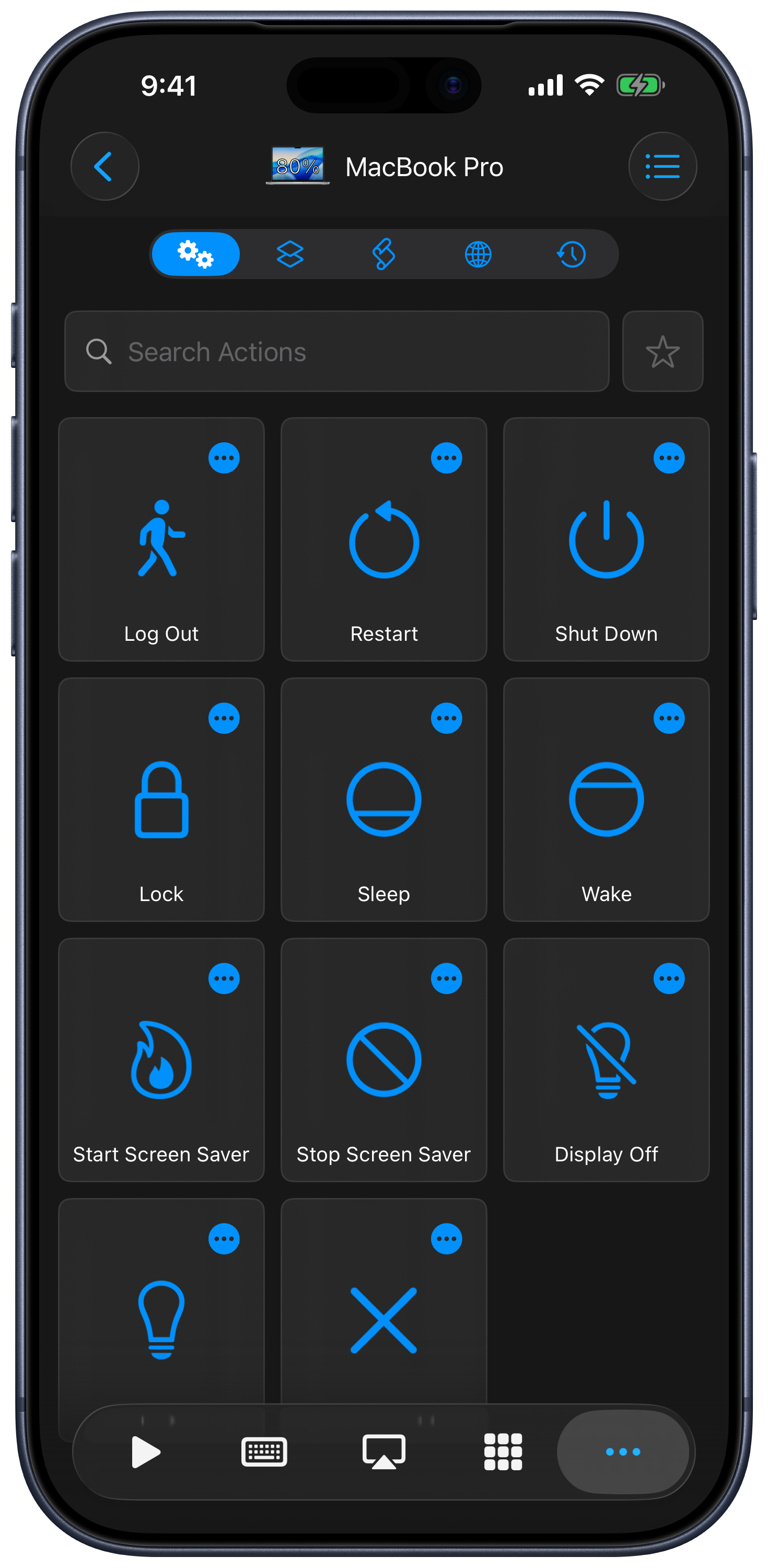
Open a saved computer and choose More. Its sections contain system commands, Mac Shortcuts, custom actions, websites, and scheduled actions. Use search and the favorites filter to find commands quickly.
System Actions
Run supported commands such as sleep, lock, restart, shut down, display on/off, or screen saver controls. The list depends on the connected computer. An action’s More menu lets you add it to favorites, create a Siri shortcut, or set a timer where supported.
Mac Shortcuts
The Shortcuts section lists shortcuts available on the connected Mac. Select one to run it on that Mac. This is separate from the iPhone/iPad Shortcuts app used to configure Siri remote actions, and is not available for Windows.
Custom Actions
Create an AppleScript action in Remote Helper on Mac or a PowerShell action in the Windows helper. It then appears under Custom Actions in the remote. Refresh the list after adding or changing an action.
Websites
Choose Add to save a website, then use its actions to open it on the computer. Browser choices include the default browser and supported installed browsers. Search the list, add favorites, or remove saved entries from their menu.
Scheduled Actions
To lock your computer later, create a timer from the action’s menu:
- Open your saved computer, choose More, and find Lock under System Actions.
- Open Lock’s More menu and choose Timer.
- Choose when the action should run, then confirm the timer.
- Open More → Scheduled Actions to check the countdown. Use Cancel beside the pending action to stop it.
The same More → Timer menu is available for supported app launches and other computer actions. Choose the menu to schedule an action; tapping the action itself runs it immediately.
Use this section to review pending actions and cancel a timer before it runs. Scheduling a command does not make an unreachable or sleeping computer available; the computer and helper must be able to execute it at the scheduled time.
Siri Shortcuts and Timer
Use an action’s More → Siri or More → Timer option where offered. For reusable automations, Apple’s Shortcuts app also provides [Computer] Run Computer Action, Open Website, dedicated system commands, and other computer actions.
Restart, shutdown, log out, and close-all-apps actions affect your computer immediately when executed. Save work before using or testing them.