 Skip to content

Remote Mouse & Keyboard works as an iPhone media remote for Mac. It combines playback and volume controls with the trackpad and keyboard input that a Mac media setup often needs.
Quick Answer
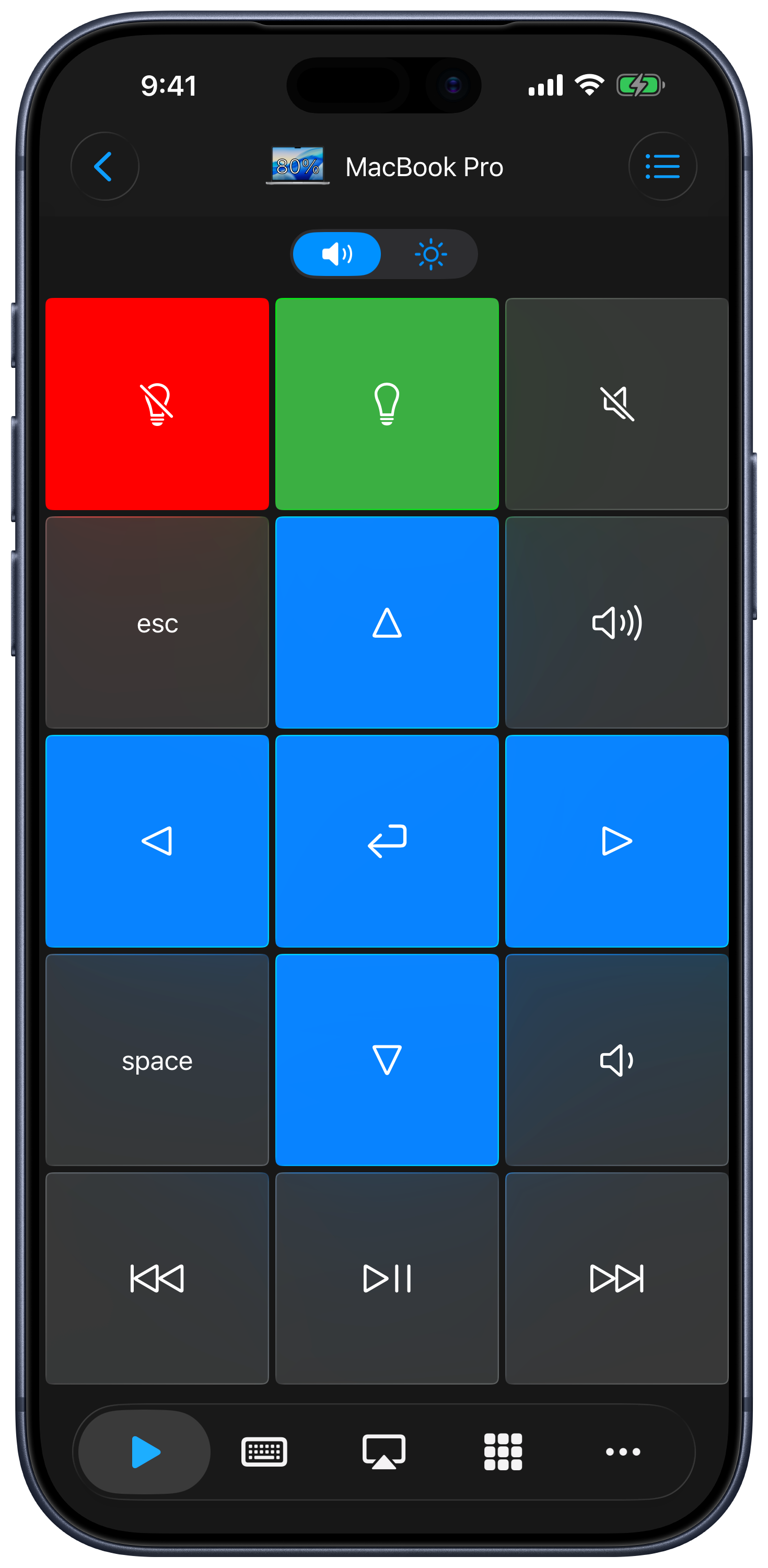
To control Mac media from iPhone, install Remote Helper on the Mac, connect the Mac and iPhone to the same network, and pair the Mac in Remote Mouse & Keyboard. Use the Media area for playback and volume, Input for mouse and typing, Apps to open software, and custom keypads for app-specific shortcuts.
What You Can Do
- Play, pause, skip, and use supported media keys.
- Change Mac volume from iPhone or iPad.
- Move the pointer, click, scroll, and type searches.
- Open or quit Mac apps.
- Trigger app shortcuts from custom keypads.
- Run supported actions with timers or Siri Shortcuts.
Setup
- Install Remote Mouse & Keyboard on iPhone or iPad.
- Install Remote Helper on Mac from rs.ltd/get.
- Connect both devices to the same local network or personal hotspot.
- Choose the Mac in the app.
- Open Media, Input, Apps, or a keypad depending on what you want to control.
Best Mac Media Uses
- A Mac mini connected to a TV or projector.
- Music playback from a Mac across the room.
- Browser video that occasionally needs mouse or keyboard input.
- Presentation or studio workflows with custom shortcuts.
- A Mac used from the couch without a keyboard on the coffee table.
Limits
Media commands depend on what the active Mac app accepts. Some websites or players respond to standard media keys; others need keyboard shortcuts or pointer input. Remote Helper must remain running, and the Mac must be awake and reachable on the local network.
Mac Media Remote FAQ
Can I type into streaming websites from iPhone?
Yes. Switch to the remote keyboard to type into the focused field on the Mac.
Can I create app-specific buttons?
Yes. Custom keypads can send keyboard shortcuts, app actions, and scripts for repeated workflows.
Is this a replacement for a full remote desktop app?
It is a better fit for quick, same-room media and input control. Use a full remote desktop product when you need complete off-site screen access.
Common questions
Can I use iPhone as a media remote for Mac?
Yes. Remote Mouse & Keyboard can control playback, volume, keyboard shortcuts, mouse input, and app launching on a paired Mac from iPhone or iPad.
Is it useful with a Mac mini connected to a TV?
Yes. A Mac mini or Mac connected to a television is a common use case because the app combines media controls with typing and trackpad input.
Does it need internet?
No. A shared local network or personal hotspot is sufficient for computer control.