 Skip to content

Use this guide to connect Apple TV Gen 1, 2, or 3 to Remote Mouse & Keyboard, the iPhone and iPad TV remote app.
Before You Start
To pair the app with your Apple TV (Gen 1, 2, or 3), you will need a physical Apple TV remote.
- Make sure your iPhone or iPad and Apple TV are connected to the same network.
- Open the device list, tap Add Device, and choose Apple TV. Use Show All if your onboarding choices filtered the device types.
- Select your Apple TV and keep the pairing code visible in the app.
How to Connect Apple TV Gen 1, 2, or 3
Open Apple TV Settings.
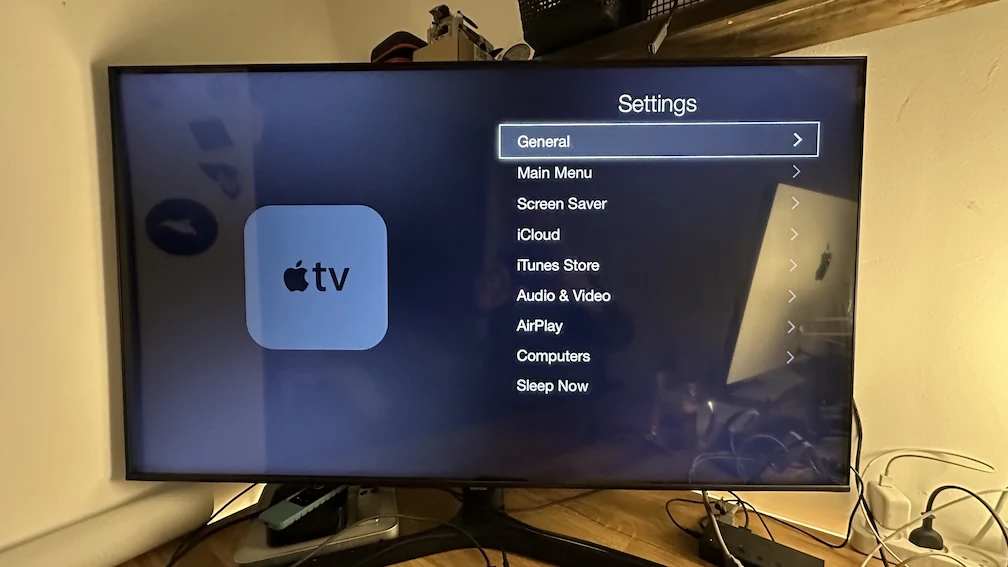
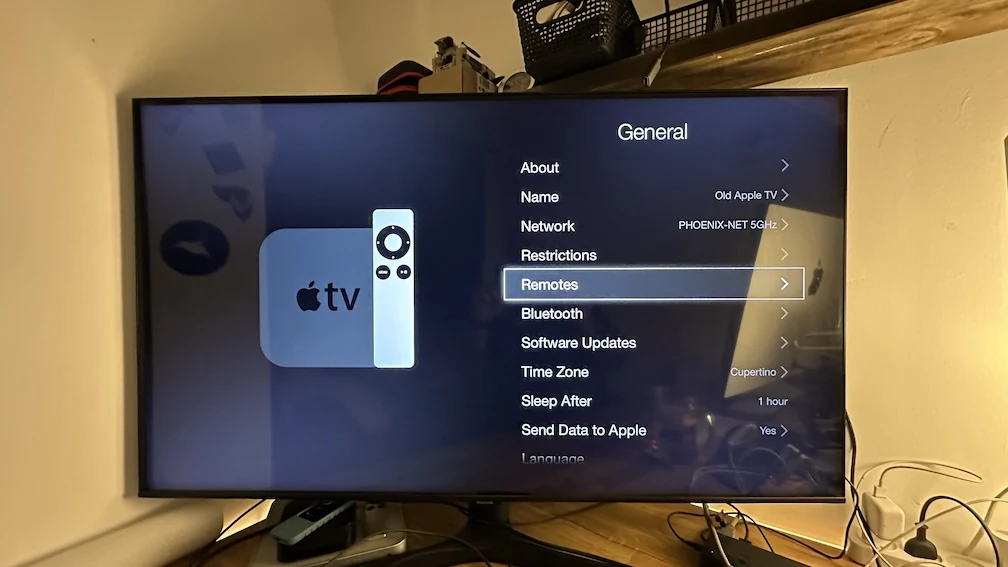
Open Remotes.
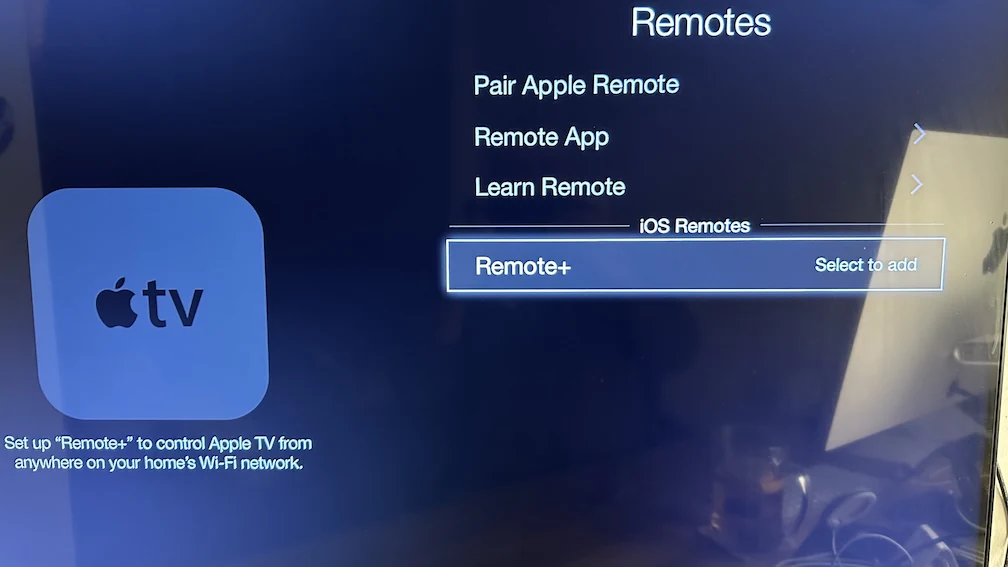
Select the entry for Remote Mouse & Keyboard. It may appear as Remote+ in the list.
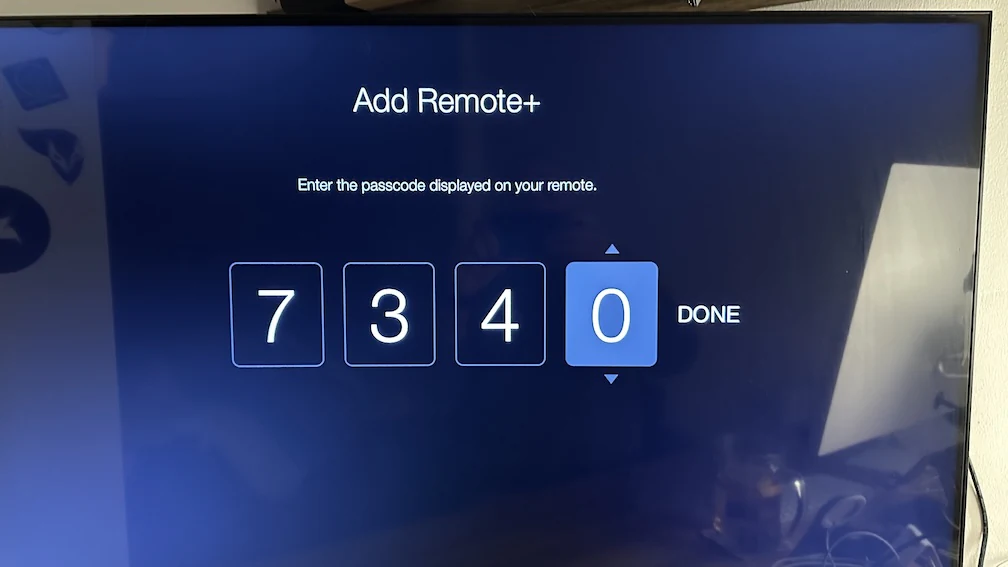
Enter the code shown by the app to finish pairing.
The app should be paired with your Apple TV.
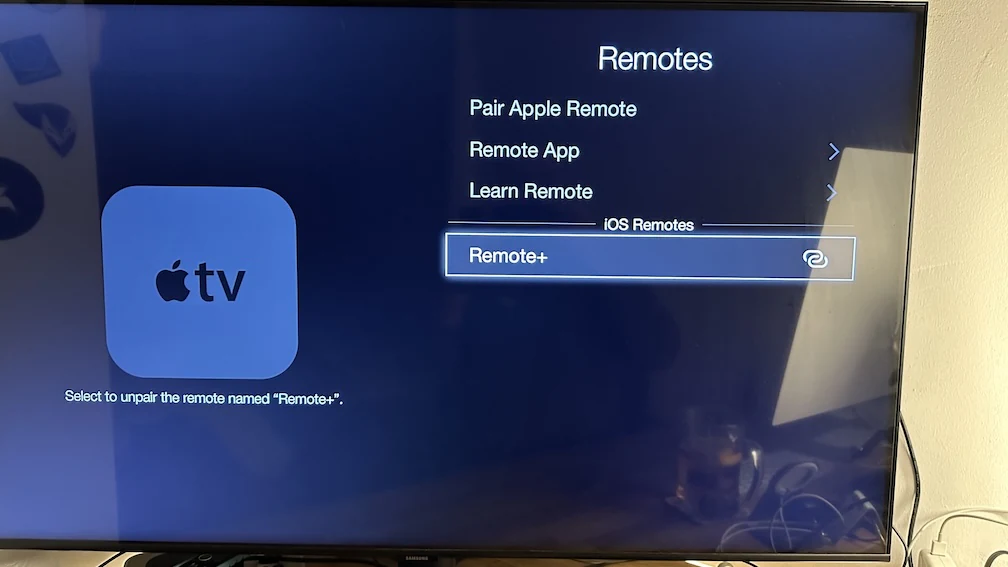
Now you should be able to control your Apple TV using the app.
Common Apple TV Gen 1, 2, 3 Connection Problems
If you cannot connect to your TV
- Make sure you are using the legacy Apple TV guide, not the Apple TV HD or Apple TV 4K guide.
- Confirm that you are selecting the correct app entry in Apple TV > Settings > General > Remotes.
- Repeat the code entry if the pairing code expires.
Apple TV Gen 1, 2, 3 FAQ
Do I need the physical Apple TV remote?
Yes. A physical Apple TV remote is required for the legacy pairing flow on Apple TV Gen 1, 2, and 3.
Common questions
Do I need the original Apple TV remote for Gen 1, 2, or 3?
Yes. For Apple TV Gen 1, 2, and 3, you need a physical Apple TV remote to reach the pairing settings.
Is this page for Apple TV HD and Apple TV 4K?
No. Apple TV HD and Apple TV 4K use a different setup flow and have their own guide.