 Skip to content

Connect to your computer
File Explorer & Player lets your iPhone, iPad, or Apple TV browse files on a Mac or Windows PC running Remote Helper. Both devices must be reachable on the same local network.
- Download and open Remote Helper on the computer. Windows requires helper version 2026.12 or later.
- Connect the computer and your viewing device to the same Wi-Fi or LAN. The computer can use Ethernet.
- Open File Explorer & Player, choose Add Device, and allow Local Network access if prompted.
- Select the discovered computer, or choose Manual Address. On iPhone and iPad, Scan QR Code can read the code shown by Remote Helper.
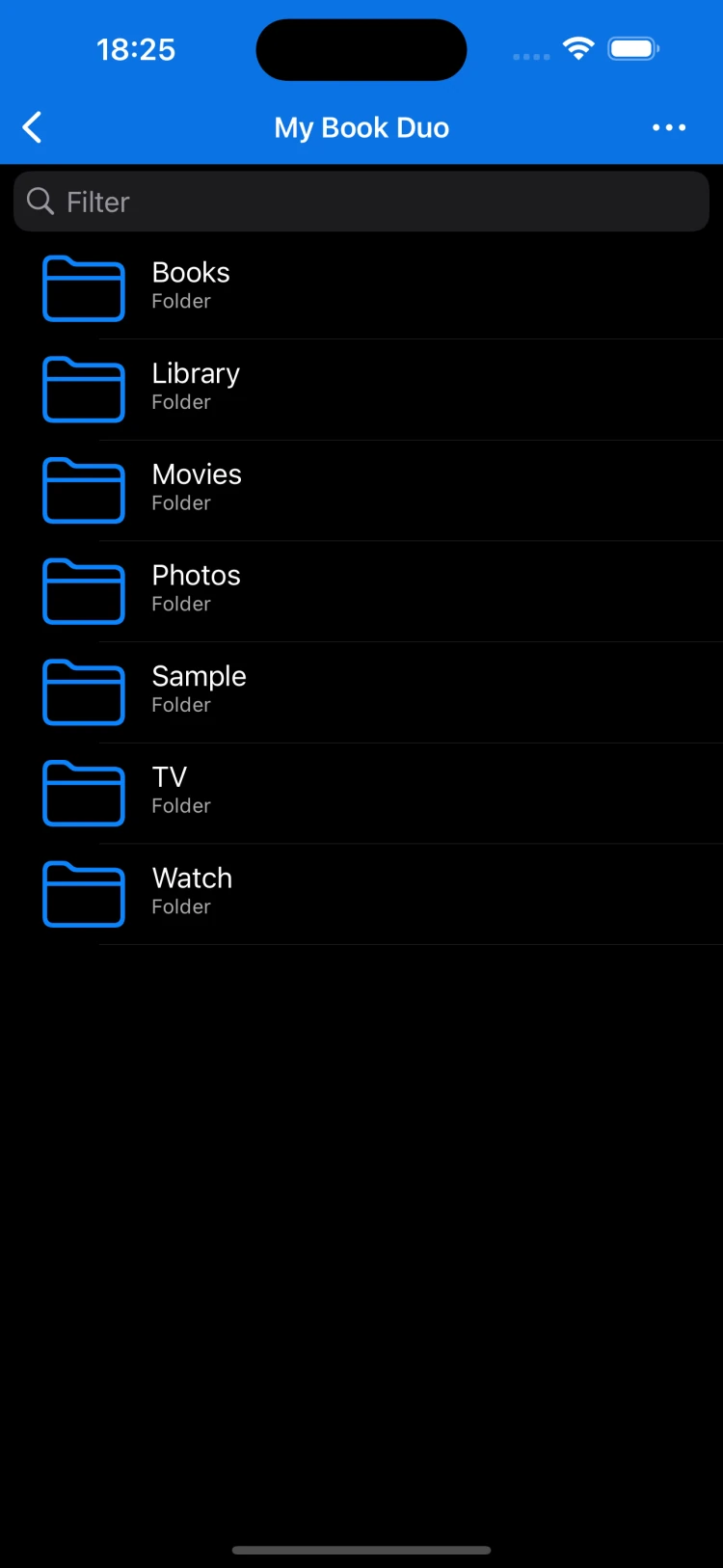
- Approve access in Remote Helper when asked, then open the computer’s folders in the app.
Stream or keep a local copy
Open a supported media file to play it over your network. Keep the computer awake and connected during streaming. The player can resume your progress and offers subtitle, audio-track, and playback-speed controls.
Playback depends on the file format and the speed of your network. Test a small file first if you are troubleshooting.
Save files for offline use
Mac or Windows PCiPhone, iPad, or Apple TV
Keep Remote Helper running and stay on the same local network.
Files on your computerOffline Library
Download files in the app, then open them without the computer connection.
- Open a file or folder’s action menu while browsing your computer and choose Save Offline. You can also select multiple items.
- Wait for the downloads to complete. The Downloads view shows progress and failed items.
- Open On This iPhone, On This iPad, or Offline Library on Apple TV to use the saved copies without the computer connection.
Offline downloads are copies. Changes to the computer’s original files do not automatically synchronize to them.
Import from Files or Photos
On iPhone or iPad, open On This iPhone or On This iPad and choose Import from Files or Import Photos/Videos. Choose the items to copy into the app. You can create folders in the local library to organize them.
These import options are for iPhone and iPad. On Apple TV, use Save Offline to download from your connected computer.
Read and resume
Open supported documents, photos, or EPUB and FB2 books from your computer or Offline Library. Favorite folders help you return quickly, and the app remembers media playback and book reading positions.
If the connection does not work
- Make sure Remote Helper is running and the computer is awake. Update older Windows helpers to version 2026.12 or later.
- Check Local Network permission for the app.
- Avoid guest Wi-Fi or networks that isolate devices.
- Check the helper’s access settings if the computer appears but files are unavailable.
- Use the connection guide or contact support with the exact error and file type.