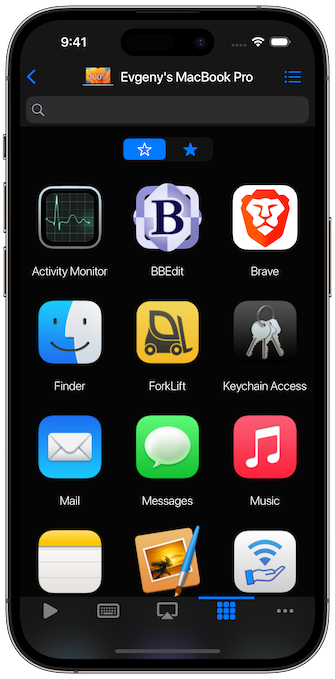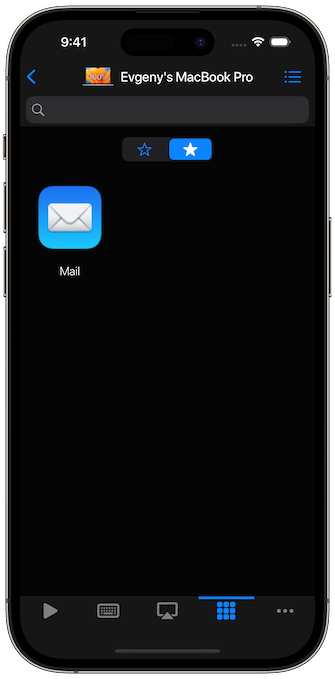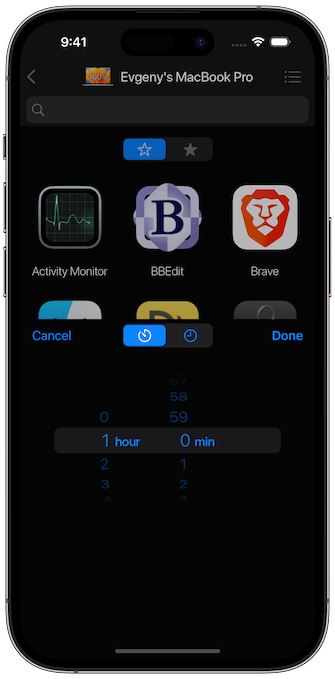







Open a saved computer, then choose Apps. Use Search Apps to find an app, or the favorites filter to switch between Show Favorites Only and Show All.

Open an App and Its Actions
- Tap an app that is not running to launch it on the computer.
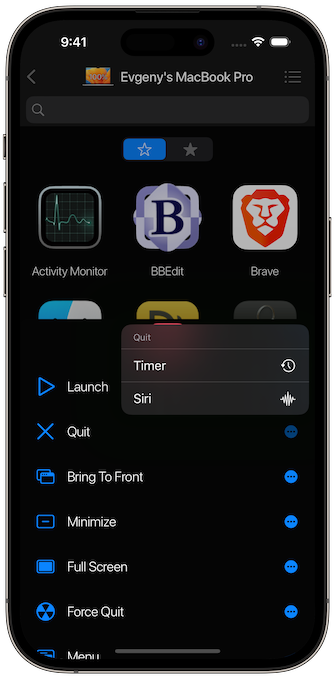
- Tap a running app to show its available actions.
- Choose a supported action such as quit, force quit, minimize, full screen, or bring to front. Availability depends on the computer and app.
The running state is shown in the app grid. Use the favorite control to add or remove an app from favorites; if a favorite is missing, switch back to Show All and search.

Mac Menu Commands
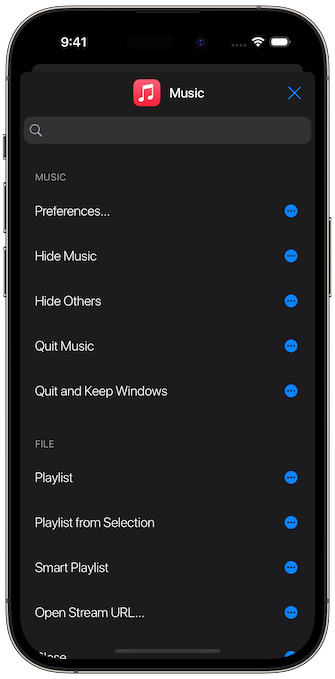
For Mac apps, supported menu commands with keyboard shortcuts can be sent from the remote. The commands come from the selected app, so the available list can change with its current state. This feature requires the helper’s relevant macOS permissions.
Siri and Timers
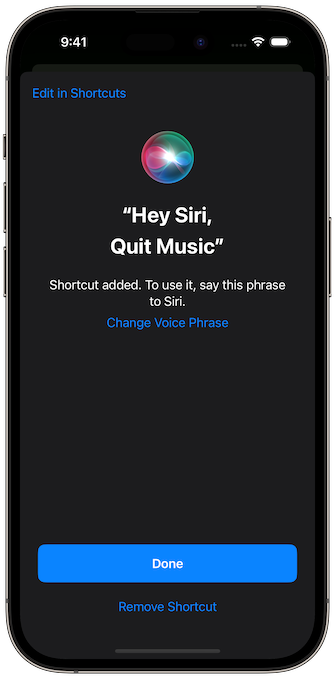
An action’s More menu offers Siri and Timer where supported. Siri actions are configured in Apple’s Shortcuts app. The current app exposes dedicated [Computer] Launch Application, Quit Application, Force Quit Application, Minimize Application, Full Screen Application, and Bring Application To Front actions.
See Siri and Shortcuts for setup and scheduled actions to review pending timers.